Bulk Status Change
Quick Reference
This page provides detailed instructions for bulk status changes. For an overview of all bulk operations, see Bulk Operations.
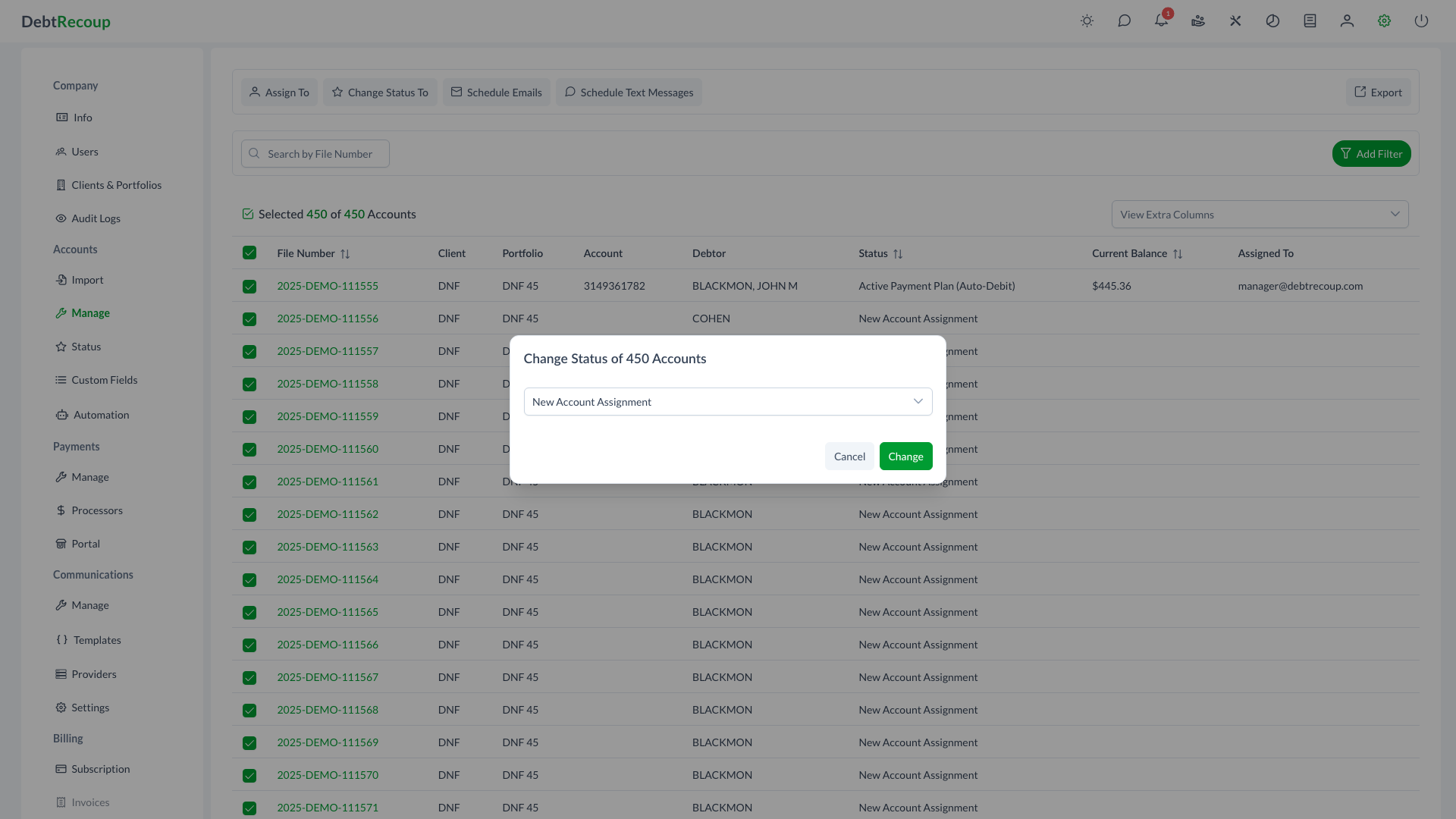
The Bulk Status Change feature allows you to update the status of multiple accounts simultaneously. This powerful tool streamlines workflow management by enabling mass status transitions, whether you are moving accounts into collections, marking them as closed, or applying any other status change across your portfolio.
Overview
The Bulk Status Change dialog provides a simple interface for applying a single status to multiple selected accounts. The system supports both manual selection of specific accounts and filter-based selection for large-scale operations. For operations affecting many accounts, the system processes changes asynchronously using a background job service, allowing you to continue working while the operation completes.
Key Benefits
- Efficiency: Update hundreds or thousands of accounts in a single operation instead of changing them one by one
- Consistency: Apply the same status uniformly across all selected accounts
- Flexibility: Choose between manually selecting individual accounts or using filters to select large groups
- Asynchronous Processing: Large bulk operations run in the background, freeing you to continue other work
- Filter Support: Combine status changes with account filters to target specific account segments
Understanding the Interface
Dialog Header
The dialog header displays the total number of accounts that will be affected by the status change, formatted as "Change Status of X Account(s)".
Status Selection
The dialog contains a single dropdown field:
| Element | Description |
|---|---|
| Status Dropdown | Filterable select field containing all available account statuses. Type to search and filter the list. |
Action Buttons
| Button | Action |
|---|---|
| Cancel | Closes the dialog without making any changes |
| Change | Applies the selected status to all target accounts |
Using This Feature
Step 1: Select Target Accounts
Before opening the Bulk Status Change dialog, you must select the accounts you want to update:
- Navigate to Administration → Accounts → Manage
- Use filters to narrow down the account list if needed
- Select accounts using one of these methods:
- Individual Selection: Click the checkbox next to each account you want to include
- Select All: Click the header checkbox to select all accounts matching your current filter criteria
Excluding Accounts
When using Select All, you can uncheck individual accounts to exclude them from the operation. The system tracks these exclusions and applies the status change only to the remaining selected accounts.
Step 2: Open the Dialog
- Click the Change Status To button in the toolbar
- The dialog opens, displaying the count of accounts to be updated
- The system loads all available statuses into the dropdown
Step 3: Select the New Status
- Click the status dropdown to see available options
- Use the search filter to quickly find the desired status by typing its name
- Click on the status you want to apply
Step 4: Apply the Change
- Review the account count in the dialog header to confirm you are updating the expected number of accounts
- Click Change to apply the status update
- For small operations, the change applies immediately
- For large operations, a background job starts and you receive notification when complete
Best Practices
Before Making Changes
- Verify Selection Count: Always check the account count in the dialog header matches your expectations
- Use Filters First: Apply filters to narrow your selection before using Select All
- Test with Small Batches: When using a new status or workflow, test with a small selection first
- Review Status Properties: Ensure the target status has the appropriate properties (collectible, workable, etc.)
During Operations
- Allow Completion: For large operations, wait for the background job to complete before starting another bulk status change
- Monitor Progress: Check the notification when the background job completes
After Operations
- Spot Check Results: Review a sample of affected accounts to verify the status change applied correctly
- Review Audit Logs: Check the audit trail for bulk status change operations
- Update Related Records: Consider whether collector assignments or other settings need adjustment for the new status
Workflow Considerations
- Status Transitions: Ensure the target status is valid for the accounts being changed according to your workflow rules
- Compliance Statuses: Take special care when applying or removing compliance-related statuses (Bankruptcy, Military Service, etc.)
- Reporting Impact: Consider how the status change affects performance metrics and reports
Related Topics
- Bulk Operations - Full bulk operations interface
- Mass Reassignment - Reassign accounts to collectors
- Status Configuration - Configure available statuses and properties
- Manage Accounts - Individual account management
- Audit Logs - Track status change history