Export Accounts
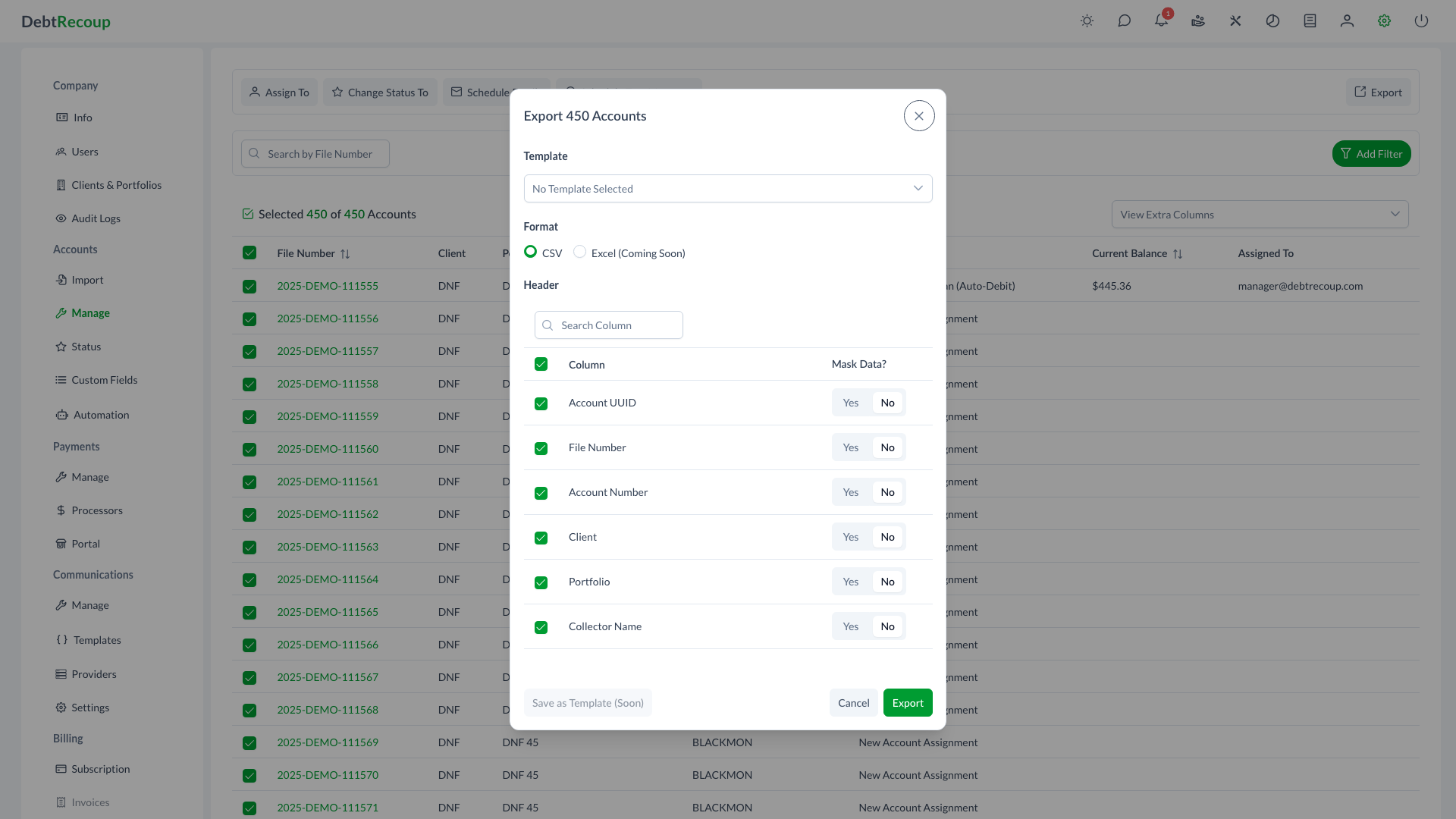
The Export Accounts feature allows you to download account data from DebtRecoup in a structured format. With customizable column selection, data masking options, and template support, you can create exports tailored to your specific needs while protecting sensitive information.
Overview
Account export enables you to extract account data for external use, such as:
- Sharing data with clients or vendors
- Creating custom reports
- Migrating data to other systems
- Backup and archival purposes
- Compliance and audit requirements
The export dialog provides granular control over which columns to include and whether sensitive data should be masked for privacy protection.
Key Benefits
- Customizable Columns - Select exactly which data fields to include in your export
- Data Masking - Protect personally identifiable information (PII) with per-column masking
- Template Support - Save and reuse export configurations for consistent reporting
- Bulk Export - Export large numbers of accounts based on your current filter or selection
- Searchable Columns - Quickly find specific columns using the built-in search
- Browser Download - Files download directly to your browser without additional steps
Understanding the Interface
Export Dialog Components
When you open the Export Accounts dialog, you will see several key sections:
| Section | Description |
|---|---|
| Header | Shows the number of accounts to be exported |
| Template | Dropdown to select a saved export template |
| Format | Radio buttons for CSV and disabled Excel |
| Header/Columns | Data table listing all available columns for export |
| Column Search | Search field to filter the column list |
| Actions | Save as Template, Cancel, and Export buttons |
Column Selection Table
The column table displays:
- Checkbox - Select or deselect columns for export
- Column - The name of the data field
- Mask Data? - Toggle to mask sensitive data in that column
Using This Feature
Accessing Account Export
- Navigate to your account list
- Apply any filters to select the accounts you want to export
- Select one or more accounts from the table
- Click the Export button in the toolbar
The Export button is disabled until at least one account is selected.
Selecting Columns
- In the export dialog, review the available columns
- Use the search field to find specific columns by name
- Click the checkbox next to each column you want to include
- To select all columns, use the header checkbox
- To deselect all, click the header checkbox again
Column Search
When exporting accounts with many custom fields, use the search box to quickly locate the columns you need. The search filters the column list in real time.
Choosing Export Format
Select your preferred output format:
- CSV - Comma-separated values, compatible with all spreadsheet applications
- Excel (Coming Soon) - Visible but disabled
Format Availability
CSV export is currently available. Excel is visible in the dialog but disabled.
Using Templates
Templates allow you to save export configurations for repeated use:
- Click the Template dropdown
- Select a built-in or previously saved template
- The template loads its saved settings:
- Selected columns
- Export format
- Masking preferences
DebtRecoup includes two built-in templates:
- Standard Export - Includes all export columns without masking
- Standard Masked Export - Includes all export columns and masks most sensitive fields
Saving Templates
After selecting columns and masking options, click Save as Template to store the current export setup. New templates require a Name. If you are editing an existing custom template, the template dialog also supports Save, Save as New, and Delete.
Exporting Your Data
- Configure your columns and masking preferences
- Click the Export button
- The system processes your request
- For small exports, the file downloads immediately
- For large exports, processing occurs in the background and you will be notified when complete
- The file saves to your browser's default download location as
data.csv
Data Masking
Data masking protects sensitive information by replacing actual values with obscured versions in the export file. This is essential when sharing data with external parties or for compliance purposes.
How Masking Works
When masking is enabled for a column:
- Sensitive data is replaced with masked characters
- The structure of the data is preserved
- The export remains usable for analysis without exposing PII
When to Use Masking
Enable masking for columns containing:
- Social Security Numbers
- Full account numbers
- Phone numbers
- Email addresses
- Full names (when sharing externally)
- Bank account information
- Credit card numbers
Per-Column Control
Each column has its own masking toggle:
- Find the column in the table
- In the Mask Data? column, click Yes or No
- The setting applies only to that specific column
Compliance Consideration
When exporting data for external parties, always review your masking settings to ensure compliance with privacy regulations such as GLBA, FDCPA, and state privacy laws.
Export Templates
Templates streamline the export process by saving your preferred configurations.
Template Contents
A template stores:
- Selected columns
- Export format
- Masking preferences for each column
Using Templates Effectively
- Create templates for recurring export needs (monthly client reports, compliance audits)
- Use different templates for internal versus external recipients
- Name templates descriptively (e.g., "Client Monthly Report - Masked" or "Full Data Backup")
Template Selection
- Open the export dialog
- Click the Template dropdown
- Select from available templates
- All settings load automatically
- Make any adjustments as needed
- Proceed with export
Best Practices
Before Exporting
- Apply Filters First - Narrow down to the exact accounts needed before opening the export dialog
- Review Account Count - Verify the number in the dialog header matches your expectations
- Check Masking Needs - Consider who will receive the export and what data they need
Selecting Columns
- Include Only What's Needed - Smaller exports are faster and easier to work with
- Use Search - Find columns quickly rather than scrolling through long lists
- Consider Templates - If you'll repeat this export, save the selected columns and masking options as a template
Security Considerations
- Mask PII by Default - When in doubt, mask sensitive columns
- Verify Recipients - Ensure the export destination is appropriate for the data sensitivity
- Secure Storage - Store exported files in secure, access-controlled locations
- Delete After Use - Remove export files when no longer needed
Large Exports
- Export During Off-Peak Hours - Large exports process more efficiently during low-usage periods
- Be Patient - Large exports run in the background; you will be notified when complete
- Verify Completeness - After download, spot-check that all expected records are present
Troubleshooting
Export Not Starting
- Verify you have selected at least one column
- Check that accounts are selected or filtered
- Ensure you have permission to export accounts
File Download Issues
- Check your browser's download settings
- Verify pop-up blockers are not preventing the download
- Try a different browser if issues persist
Missing Data in Export
- Confirm the column was selected in the export dialog
- Check if masking was accidentally enabled
- Verify the source accounts contain data in those fields
Related Topics
- Manage Accounts - Working with account data
- Import Accounts - Importing account data
- Bulk Operations - Mass account updates
- Custom Fields - Setting up custom data fields