Fee Management
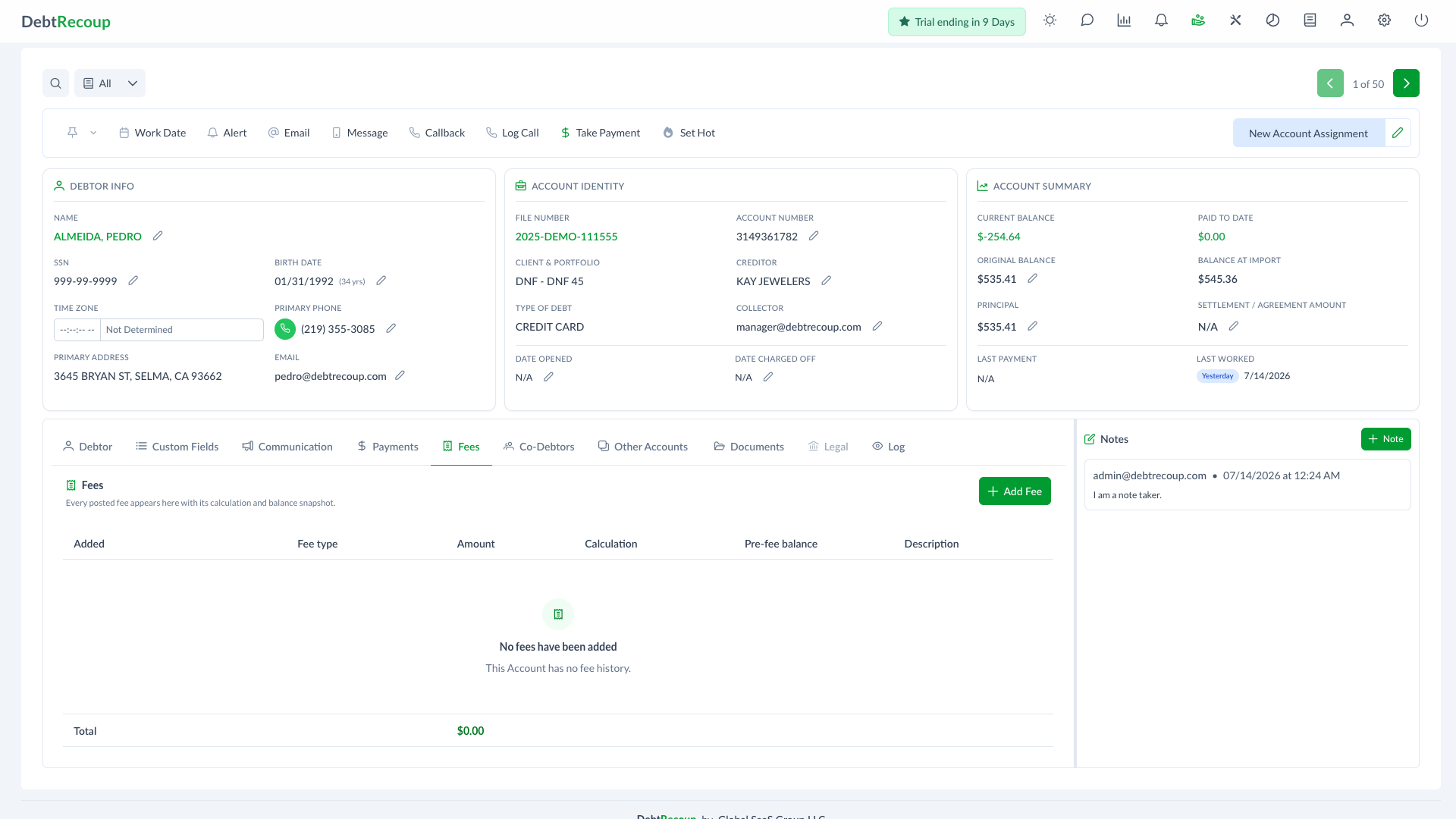
Fee Management tracks account-level fees that change the account Current Balance. Fees appear on the Fees tab in the account detail area.
What Fees Track
The Fees tab shows every posted fee for the account.
| Column | Description |
|---|---|
| Added | Date and time the fee was posted |
| Fee type | Fee label, such as Collection Fee or Attorney Fee |
| Amount | Dollar amount added to the account |
| Calculation | Flat amount or percentage calculation |
| Pre-fee balance | Current Balance before the fee was added |
| Description | Optional supporting detail |
The footer totals the displayed fee amounts.
Add a Fee
Users with the ADD_ACCOUNT_FEES permission can add fees from the account Fees tab.
- Open an account.
- Select the Fees tab.
- Click Add Fee.
- Select or enter a Type.
- Choose Flat Amount or Percentage.
- Enter the amount or percentage.
- Add an optional Description.
- Review Current Balance, Fee, and New Current Balance.
- Click Add fee.
Supported default fee types are Collection Fee, Attorney Fee, Court Fee, Late Fee, NSF / Returned Payment Fee, and Reimbursed Fee. The type field is editable, so your organization can enter another label when needed.
Calculation Rules
| Calculation | Rule |
|---|---|
| Flat Amount | Adds a fixed dollar amount greater than zero |
| Percentage | Calculates the fee from the account Current Balance |
Percentage fees require a Current Balance greater than zero and cannot exceed 100%.
What Changes After Saving
When a fee is added:
- The fee is stored with the pre-fee balance snapshot.
- The account Current Balance increases by the fee amount.
- The account Last Worked date is updated.
- The account log records the fee addition.
Delete a Fee
Users with fee delete permission can delete eligible fees from the Fees tab. Deleting a fee reverses the fee amount from Current Balance and records the deletion in the account log.
Delete buttons only appear for fees you are allowed to delete.
Import Fees
Account imports can also add fees during import configuration. The import fee options are:
| Option | Result |
|---|---|
| No Fee | No import fee is added |
| Flat Amount | Adds the configured amount to each imported account |
| Percentage | Calculates the fee from each imported account Current Balance |
Related Topics
- Account Tabs - Account detail tabs
- Import Accounts - Import configuration
- Payment Processing - Payments and payment plans