Mass Reassignment
Quick Reference
This page provides detailed instructions for mass reassignment operations. For an overview of all bulk operations, see Bulk Operations.
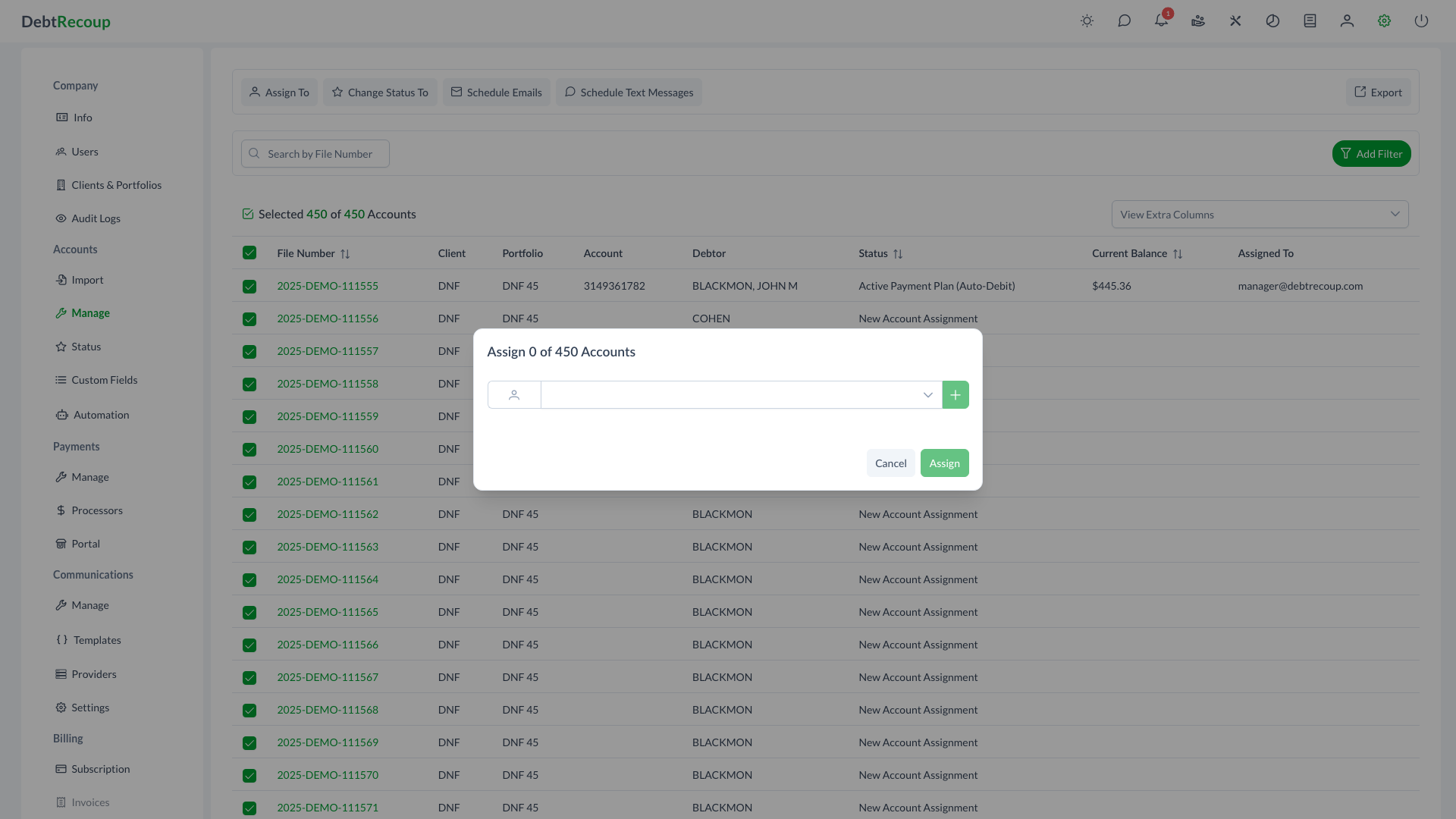
The Mass Reassignment feature enables you to assign or reassign accounts to collectors in bulk, with optional payment crediting. Whether you need to redistribute workloads, onboard new collectors, or unassign accounts for redistribution, this dialog provides flexible options for managing collector assignments at scale.
Overview
The Mass Reassignment dialog allows you to select one or more collectors and specify how many accounts each should receive. When distributing accounts among multiple collectors or assigning fewer accounts than selected, the system randomly distributes accounts to meet your specified counts. The dialog also supports unassigning accounts and optionally crediting payments to newly assigned collectors.
Key Benefits
- Flexible Distribution: Assign accounts to a single collector or distribute across multiple team members
- Random Assignment: Automatically randomize account distribution for fair workload balancing
- Payment Crediting: Transfer payment credit to new collectors when reassigning accounts
- Unassign Capability: Remove collector assignments to prepare accounts for redistribution
- Role Visibility: User role indicators help you identify collectors by their system permissions
- Async Processing: Large reassignment operations run in the background without blocking your workflow
Understanding the Interface
Collector Selector
The dropdown at the top of the dialog displays all available users who can be assigned accounts:
| Element | Description |
|---|---|
| User Dropdown | Searchable list of collectors and the Unassign option |
| Role Avatar | Single-letter indicator showing the user's role (see below) |
| Add Button (+) | Adds the selected user to the assignment list |
Role Avatars
Each user in the dropdown displays a role avatar to help you identify their permissions level:
| Avatar | Role |
|---|---|
| R | Root (System Administrator) |
| A | Administrator |
| S | Supervisor |
| M | Manager |
| C | Collector |
Users are sorted by role hierarchy, with Unassign appearing first, followed by higher-level roles.
Selected Collectors List
Once you add collectors to the assignment list, each entry displays:
| Element | Description |
|---|---|
| Assign To Label | Indicates this is an assignment (not shown for Unassign) |
| Collector Name | The selected user's name |
| Account Count | Number input specifying how many accounts to assign to this collector |
| Remove Button (-) | Removes this collector from the assignment list |
Payment Crediting Options
When assigning accounts (not unassigning), you can optionally credit payments to the new collector:
| Option | Description |
|---|---|
| Credit Payments Toggle | Enable or disable payment crediting for this assignment |
| All | Credit all payments on the reassigned accounts to the new collector |
| Pending Only | Credit only pending (unprocessed) payments to the new collector |
Using This Feature
Assigning Accounts to a Single Collector
- On Manage Accounts, select accounts and click Assign To
- Select a collector from the dropdown
- Click the + button to add them to the list
- The account count defaults to the total selected accounts
- Adjust the count if you want to assign fewer accounts
- Optionally enable Credit Payments and select the credit option
- Click Assign to execute
Distributing Accounts Among Multiple Collectors
- On Manage Accounts, select accounts and click Assign To
- Select the first collector from the dropdown and click +
- Enter the number of accounts to assign to this collector
- Select the next collector and click +
- Enter their account count
- Repeat for additional collectors as needed
- Ensure the total account count does not exceed the selected accounts
- Click Assign to execute
Random Distribution
When you specify account counts for multiple collectors, the system randomly selects which accounts go to each collector. This ensures fair and unbiased distribution.
Unassigning Accounts
- On Manage Accounts, select accounts and click Assign To
- Select Unassign from the top of the dropdown
- Click the + button
- Enter the number of accounts to unassign
- Click Unassign to execute
TIP
Unassigning accounts removes the collector assignment, making those accounts available for future redistribution. This is useful when a collector leaves or when you need to rebalance workloads.
Partial Assignment with Random Selection
To assign only a portion of the selected accounts:
- Add one or more collectors to the assignment list
- Set the total account counts to less than the selected total
- The dialog header updates to show "Assign X of Y Accounts"
- A message confirms accounts will be randomly assigned
- Click Assign to execute
Payment Crediting Options
When reassigning accounts between collectors, you may want the new collector to receive credit for payments on those accounts:
All Payments
Select All to credit every payment on the reassigned accounts to the new collector. This is appropriate when:
- Fully transferring account responsibility
- The previous collector should no longer receive credit
- Starting fresh with a new collector
Pending Only
Select Pending Only to credit only payments that have not yet been processed. This is appropriate when:
- The previous collector should retain credit for completed work
- Only future payments should credit to the new collector
- Maintaining historical payment attribution
WARNING
Payment crediting affects commission calculations and performance metrics. Ensure you understand your organization's policies before enabling this option.
Best Practices
Planning Reassignments
- Review Workloads: Check current collector assignments before redistributing
- Consider Timing: Schedule large reassignments during off-peak hours
- Communicate Changes: Notify affected collectors about account transfers
Using Distribution Wisely
- Balance Counts: When distributing across collectors, consider each person's capacity
- Start Small: Test with a small batch before reassigning thousands of accounts
- Verify Results: After reassignment, spot-check accounts to confirm correct assignment
Payment Credit Decisions
- Document Policy: Establish clear guidelines for when to credit payments
- Be Consistent: Apply the same crediting approach across similar reassignment scenarios
- Audit Periodically: Review payment credits to ensure proper attribution
Large Operations
- Background Processing: Large reassignments run asynchronously; you can continue working
- Monitor Progress: Watch for completion notifications on bulk operations
- Avoid Conflicts: Do not start overlapping reassignment operations
Related Topics
- Bulk Operations - Central hub for all bulk account actions
- Bulk Status Change - Change status of multiple accounts
- Manage Accounts - Full account management interface
- User Management - Manage collectors and their roles