Posted Payments
Payment Management
This page describes posted payments in Payment Management. For an overview of the payment status KPI buttons and common actions, see Manage Payments.
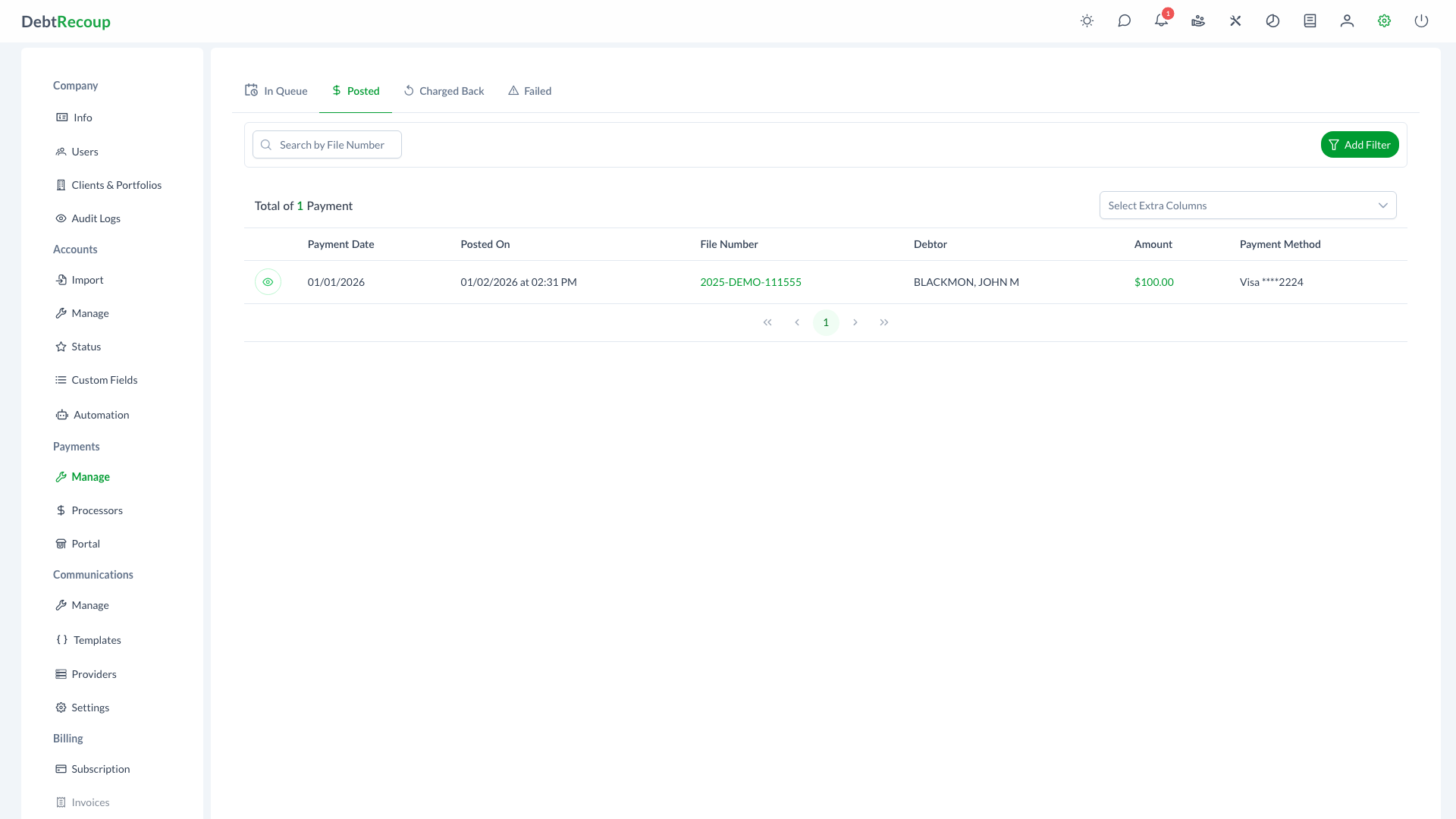
The Posted Payments interface provides a comprehensive historical view of all successfully processed and posted payments in the system. This read-only view allows administrators to review payment history, verify transaction details, and maintain accurate financial records.
Overview
Posted Payments displays all payments that have been successfully processed and applied to debtor accounts. Each transaction represents a completed financial event where funds have been received and properly allocated. This historical record is essential for reconciliation, auditing, and reporting purposes.
Key Benefits
- Complete Transaction History: Access the full record of all successfully posted payments in one centralized view
- Quick Account Access: Click any file number to navigate directly to the associated debtor account
- Detailed Payment Information: View comprehensive payment details including method, amount, and posting timestamps
- Efficient Data Loading: Lazy loading with pagination ensures fast performance even with large payment volumes
- Flexible Column Display: Customize visible columns to focus on the information most relevant to your workflow
Accessing Posted Payments
- Open Management from the top navigation
- Select the Payments tab
- Select the Posted KPI button
Understanding Your Data
The Posted Payments table displays the following information for each transaction:
| Column | Description |
|---|---|
| Payment Date | The date the payment was originally made or received |
| Posted On | The exact date and time when the payment was posted to the system |
| File Number | Unique account identifier (clickable - opens the associated debtor account) |
| Collector | Collector assigned to the account |
| Debtor | Name of the debtor associated with the payment |
| Amount | Payment amount displayed in green to indicate successful posting |
| Payment Method | Saved method label used for the payment, such as Credit Card or Manual |
Optional Columns
Additional columns can be displayed based on your needs:
| Column | Description |
|---|---|
| Client | The client associated with the account |
| Portfolio | The portfolio the account belongs to |
| Current Balance | The account's current outstanding balance |
| Payor Name | Name of the person or entity who made the payment |
Using This Feature
Viewing Payment History
- Navigate to the Posted Payments page
- Use Search by File Number or Add Filter to narrow the list
- Scroll through the paginated list (100 payments per page)
- Use the paginator to move through additional pages
Filtering Payments
Filter your payment list to find specific transactions:
Date Range Filtering
- Set start and end dates to view payments within a specific period
- Useful for monthly reconciliation and period-end reporting
Search Options
- Search by file number for account-specific history
Viewing Payment Details
To view complete details for any posted payment:
- Locate the payment in the list
- Click the View button (eye icon) in the Actions column
- Review the payment details in the Payment Dialog
- The dialog displays:
- Full transaction information
- Payment allocation details
- Processing timestamps
- Any associated notes or references
- Close the dialog when finished
Limited Editing
Posted payments have restricted editing. Only payment attribution can be modified, and chargebacks can be initiated by users with appropriate permissions. Core payment details (date, amount, method) cannot be changed.
Pagination and Performance
The Posted Payments interface is optimized for handling large volumes of historical data:
- Page Size: 100 payments displayed per page
- Lazy Loading: Additional pages load automatically as you scroll
- Quick Navigation: Jump to specific pages when searching large datasets
- Responsive Loading: Data loads efficiently without impacting system performance
Best Practices
Daily Reconciliation
- Review posted payments daily to verify all transactions processed correctly
- Compare posted totals against expected deposit amounts
- Investigate any discrepancies promptly
Audit Preparation
- Use date filtering to generate period-specific payment lists
- Export data as needed for external auditing requirements
- Maintain documentation of any unusual transactions
Account Research
- Click file numbers to quickly access full account details
- Review payment history when researching debtor inquiries
- Verify payment posting dates for compliance documentation
Data Verification
- Cross-reference posted payments with bank deposits
- Verify payment method accuracy for reporting purposes
- Confirm payor information matches account records
Related Topics
- Manage Payments - Overview of payment status KPI buttons and common actions
- Payment Queue - Manage payments waiting to be processed
- Failed Payments - Handle payment processing errors
- Charged Back - Track reversed payments
- Payment Processors - Configure payment processing methods
- Payment Processing - Collector payment entry guide
- DC IT Reports - Payment analytics and reporting
- Audit Logs - Track payment-related system activity