Documents
Overview
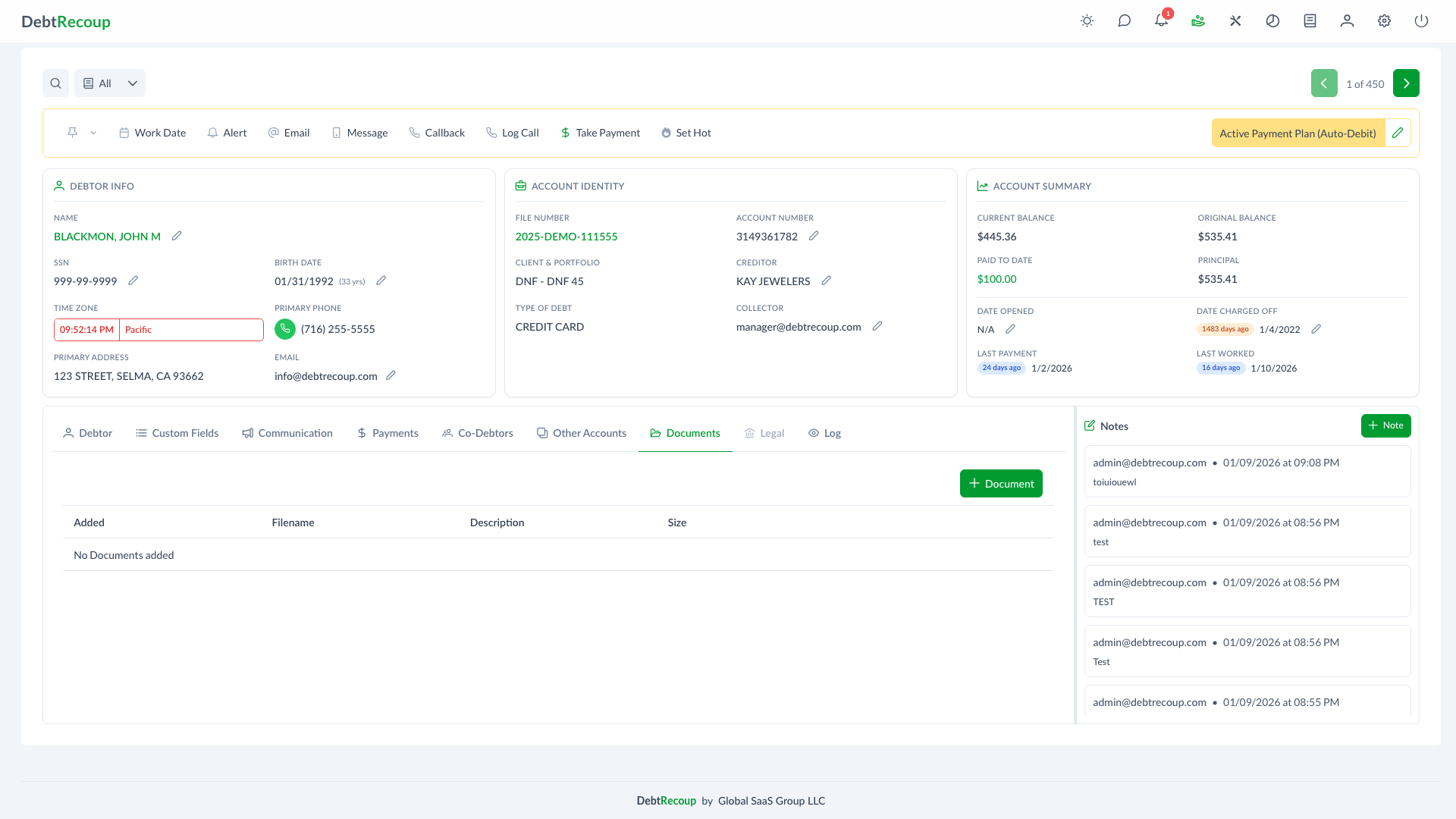
DebtRecoup's Documents feature allows you to attach, manage, and organize files associated with individual accounts. Store important documentation such as signed agreements, payment evidence, correspondence scans, and other supporting files directly within the account record for easy access and reference.
Key Benefits
- Centralized Storage: Keep all account-related documents in one accessible location
- Quick Access: View PDF documents directly in the browser without downloading
- Template Integration: Generate documents from pre-configured templates
- E-Signature Requests: Request signatures and track signature status from the document row
- Audit Trail: Track when documents were added with automatic timestamps
- File Organization: Add descriptions to documents for easy identification
Understanding Your Data
The documents list displays the following information for each attached file:
| Field | Description |
|---|---|
| Added | The date the document was uploaded or generated |
| Filename | The original name of the uploaded file |
| Description | Optional notes describing the document's contents or purpose |
| Size | The file size displayed in a human-readable format (KB, MB) |
| E-Signature | Signature request status and timestamp, or a Request action when no request exists |
Using This Feature
Adding Documents
To attach a document to an account:
- Open the account
- Navigate to the Documents tab
- Click the Document button in the header
- Choose one of two options:
- From Template: Select a document template and choose PDF or DOCX
- From File: Click Choose File to upload a document from your computer
- Add an optional Description to help identify the document later
- Click Add to save
TIP
The maximum file upload size is 50 MB. For larger files, consider compressing or splitting them before upload.
Viewing Documents
For PDF documents, you can view the original file directly in the browser:
- Locate the document in the list
- Click the View button (eye icon) - this option appears only for PDF files
- The document opens in a viewer dialog
For signed documents, the View split button can open the signed, audit, or original document when that version is available.
For non-PDF files, use the download option to view them in their native application.
Downloading Documents
To download any document:
- Find the document in the list
- Click the Download button (download icon)
- The file downloads to your default download location
For signed documents, the Download split button provides signed, audit, and original download options.
Requesting E-Signatures
To request a signature for a document:
- Locate the document in the list
- Click Request in the E-Signature column
- Complete the E-Signature dialog
Documents with an existing signature request show the current status and timestamp. Click the status tag to reopen the signature dialog.
Deleting Documents
To remove a document from an account:
- Locate the document in the list
- Click the Delete button (trash icon)
- Confirm the deletion in the dialog that appears
WARNING
Signed documents cannot be deleted. Documents with an active e-signature request must have the request cancelled before deletion; documents with expired, declined, or cancelled requests can be deleted.
Best Practices
Document Naming
- Use clear, descriptive filenames before uploading
- Include dates in filenames when relevant (e.g., "Payment_Agreement_2024-01-15.pdf")
- Avoid special characters that may cause issues
Using Descriptions
- Always add descriptions to help identify documents later
- Include relevant details such as document type, date range, or related parties
- Use consistent description formats across your team
Document Organization
- Upload documents promptly after receiving them
- Remove outdated or duplicate documents to maintain a clean record
- Use templates for frequently generated documents to ensure consistency
Compliance Considerations
- Store only documents directly related to the account
- Follow your organization's document retention policies
- Ensure sensitive information is appropriately secured
Related Topics
- Notes and Alerts - Adding notes to accounts
- Email Communication - Sending emails with attachments
- E-Signatures - Managing signature requests and providers
- Account Tabs - Navigating account information