Document Templates
Document templates are DOCX files used for generated letters, notices, and other printable communication materials. They are managed from the Documents tab on Administration > Communications > Templates.
Overview
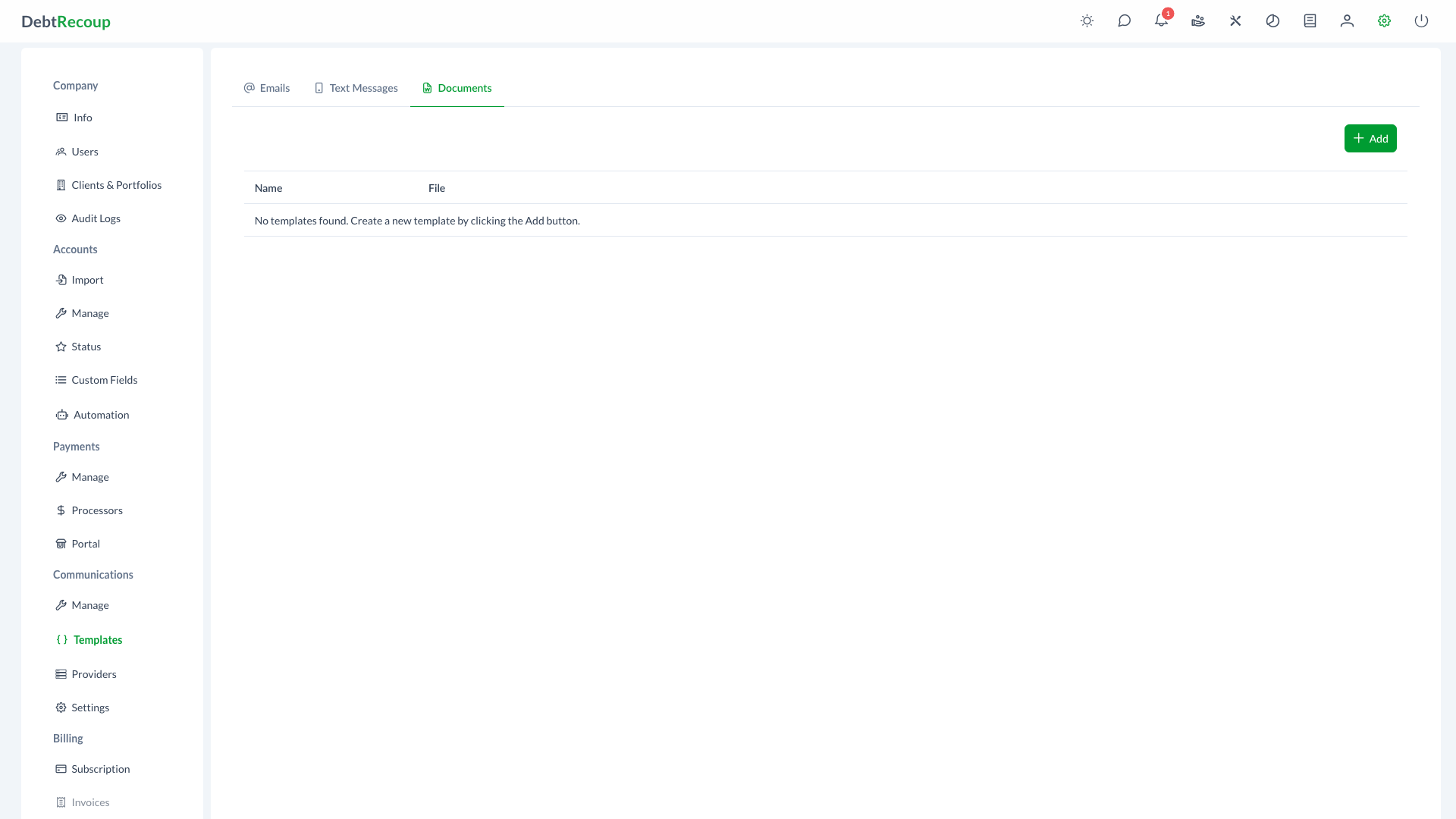
The Documents tab provides a centralized location for uploading, editing, downloading, and previewing document templates used in debtor communications. Unlike email and message templates, document templates are file-based assets.
Key Benefits
- Centralized Template Storage: Maintain all document templates in one accessible location
- Consistent Branding: Ensure all generated documents follow company standards
- Version Control: Track which templates are in use and update them as needed
- Compliance Ready: Store approved, compliant document formats for regulatory requirements
- Easy Management: Upload, download, edit, preview, and remove templates from one page
Understanding Your Data
The document templates list displays the following information:
| Column | Description |
|---|---|
| Name | The descriptive name assigned to the template for easy identification |
| File | The filename including extension (e.g., validation_notice.docx, payment_reminder.docx) |
| Actions | Available operations: Download, Edit, and Delete |
Accessing Document Templates
- Open Administration
- In the Communications section, select Templates
- Select the Documents tab
Using This Feature
Uploading a New Template
- Click the Add button (plus icon) to open the upload dialog
- Enter a descriptive Name for the template
- Click Choose File to upload a Word document (.docx file)
- Click Save to add the template to your library
Supported Format
Document templates must be in Microsoft Word format (.docx). Other file types are not supported.
Editing Templates
- Locate the template you want to modify in the list
- Click the Edit button (pencil icon) in the Actions column
- Update the template name, replace the file, or click Edit next to the file to open the DOCX editor
- Click Save to apply your changes
Previewing Templates
- Open the template in the edit dialog
- Click Preview
- Select an account when prompted
- Review the generated PDF preview and any missing-variable warning
Downloading Templates
- Locate the template in the list
- Click the Download button
- Save or review the downloaded DOCX file
File Replacement
When replacing a template file, ensure the new file maintains the same variable placeholders and formatting structure to avoid issues with document generation.
Deleting Templates
- Find the template you wish to remove
- Click the Delete button (trash icon) in the Actions column
- Confirm the deletion when prompted
Before Deleting
Review whether the template is still needed before deleting it. Deleted templates are removed from the active template list and the action is recorded in the audit log.
Related Topics
- Email Templates - Manage email communication templates
- Text Templates - Manage SMS and MMS templates
- Notification Templates - Manage automation notification templates
- Manage Communications - Communication oversight and approval
- Communication Settings - Configure communication preferences
- Automation Triggers - Automate document generation based on events