Notifications
DebtRecoup's notification system keeps you informed of important events in real-time. Notifications appear instantly when significant actions occur on accounts you're working with.
Accessing Notifications
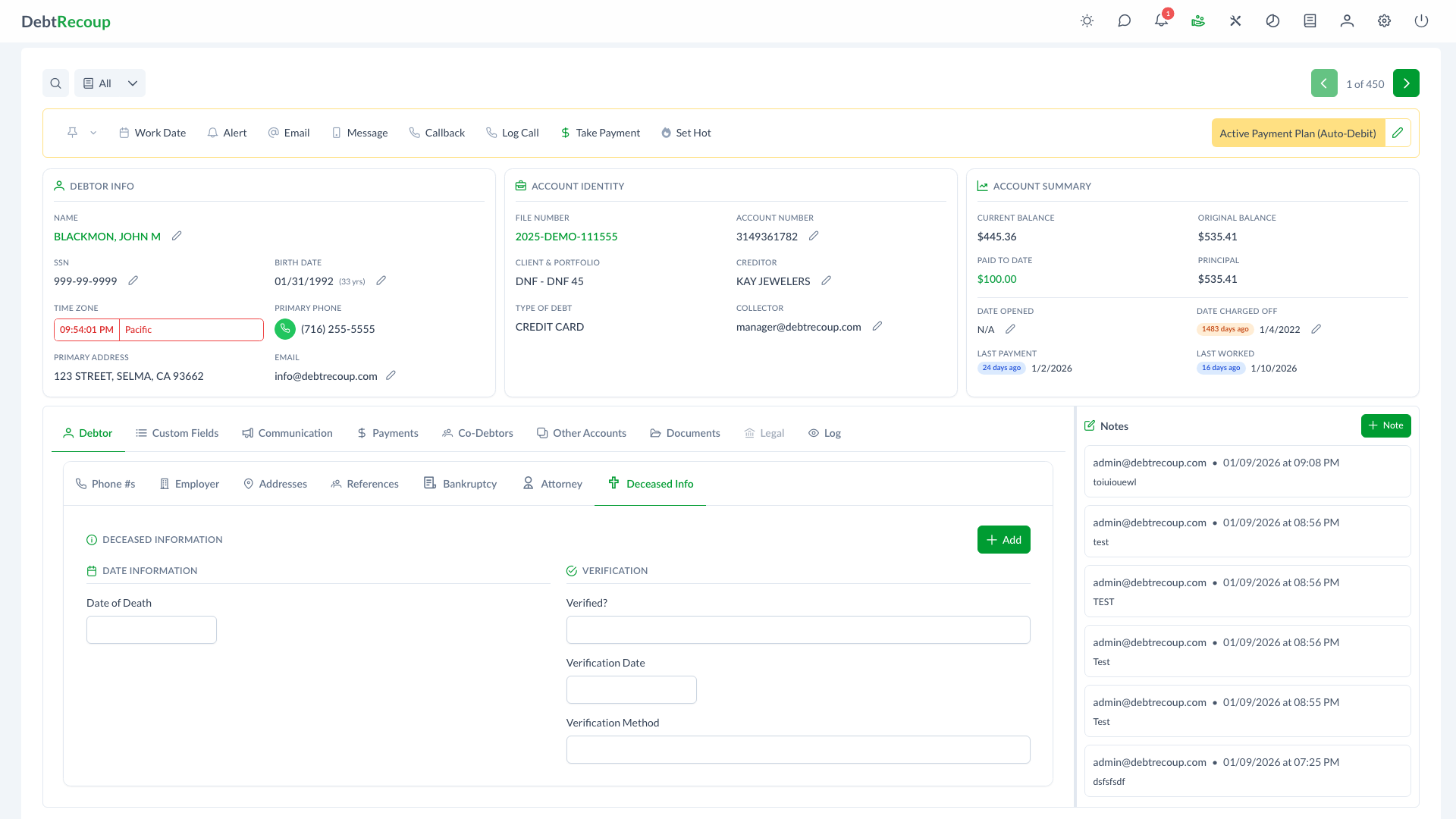
Click the notification icon in the top navigation bar to open the Notifications drawer. A red badge shows your unread notification count.
Notification Types
Notifications are color-coded by severity to help you quickly identify their importance:
| Severity | Color | Icon | Use Case |
|---|---|---|---|
| Success | Green | Checkmark | Payment posted, action completed successfully |
| Info | Blue | Info circle | General updates, status changes |
| Warning | Yellow | Exclamation | Attention needed, payment at risk |
| Error | Red | X circle | Failed payment, action error |
Notification Drawer
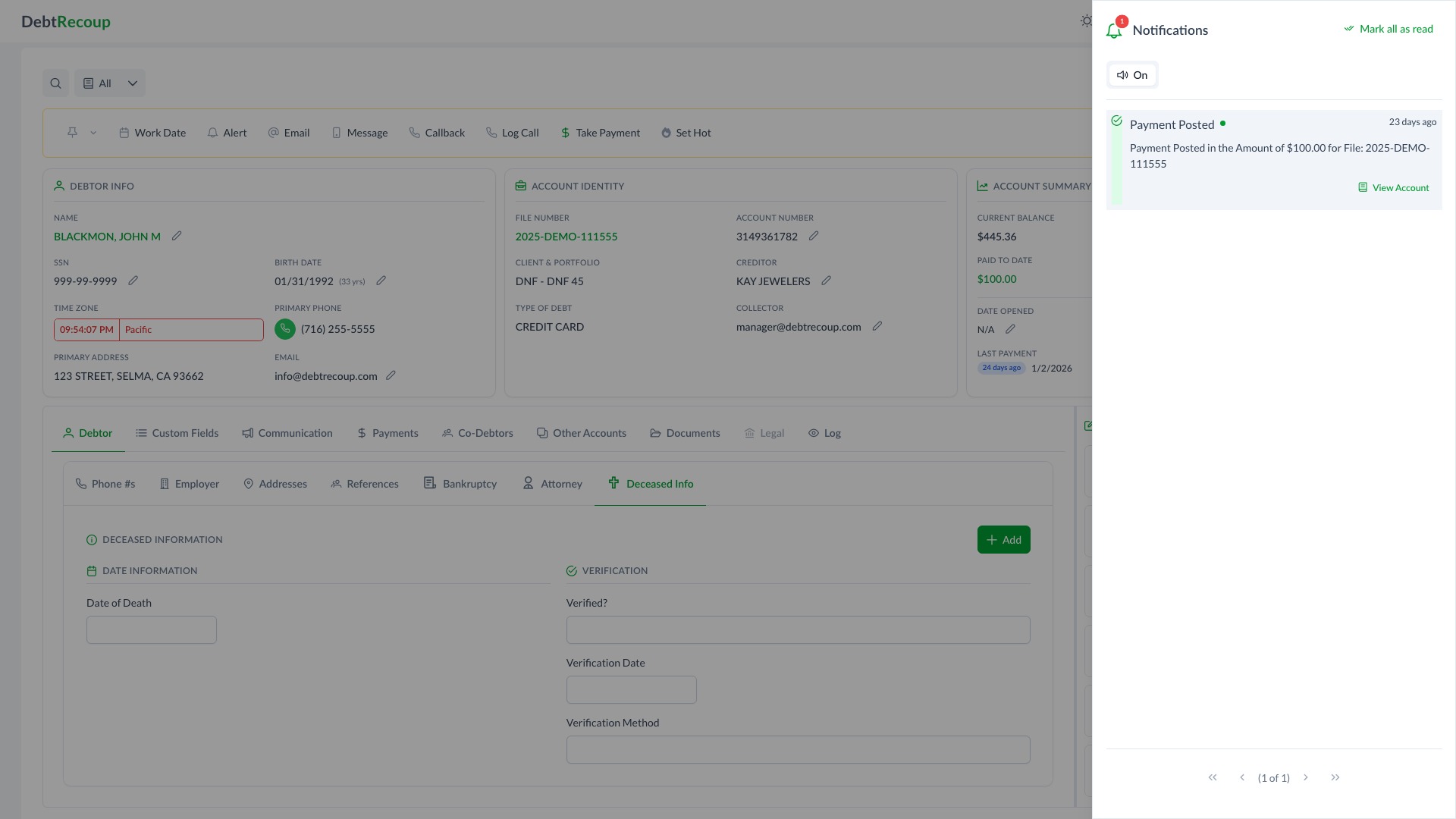
The notification drawer slides in from the right side of the screen and displays:
Header
- Bell icon with unread count badge
- Mark all as read button to clear all unread indicators
Sound Toggle
- Toggle notification sounds on/off
- Your preference is saved to your user profile
- When enabled, you'll hear an audio alert for new notifications
Notification List
Each notification shows:
- Severity icon - Color-coded indicator
- Title - Brief description of the event
- Message - Detailed information
- Timestamp - Relative time (e.g., "2 minutes ago")
- Action button - Quick access to related account (when applicable)
Pagination
Navigate through older notifications using the page controls at the bottom. The drawer shows 10 notifications per page.
Real-Time Updates
Notifications use WebSocket technology to deliver updates instantly:
- No refresh needed - New notifications appear automatically
- Toast alerts - When the drawer is closed, new notifications pop up as toast messages
- Sound alerts - Optional audio notification for new events
- Badge counter - Updates in real-time as new notifications arrive and displays
999+for very large unread counts
Notification Actions
Some notifications include action buttons for quick access:
View Account
When a notification relates to a specific account, click View Account to navigate directly to that account's details page.
Managing Notifications
Mark as Read
- Click on any unread notification to mark it as read
- Unread notifications have a highlighted background and a blue dot indicator
- Read notifications appear with a standard background
Mark All as Read
Click Mark all as read in the drawer header to clear all unread indicators at once.
Sound Preferences
- Open the Notifications drawer
- Use the On/Off toggle to enable or disable notification sounds
- Your preference is automatically saved
Common Notification Events
You may receive notifications for:
- Payment Posted - A payment was successfully processed
- Payment Declined - A payment attempt failed
- Callback - A scheduled callback is due
- Request for Contact - A debtor requested contact through the payment portal
- E-Signature - A signature request was signed, declined, or expired
- Trigger Actions - Automated triggers generated a notification from a notification template
Troubleshooting
Not Receiving Notifications
- Ensure you're logged in and the session is active
- Refresh the page to re-establish the WebSocket connection
- Verify your network connection is stable
- If the issue continues, sign out and sign back in to start a new session
Sound Not Playing
- Check that notification sounds are toggled On
- Verify your device volume is not muted
- Ensure your browser is not blocking audio autoplay
- Try clicking anywhere on the page first (some browsers require user interaction)
Missing Notification Count
If the badge count seems incorrect:
- Open the Notifications drawer to sync the count
- Refresh the page if needed
- The count updates automatically when you mark notifications as read
Best Practices
Stay Informed
Keep the notification sound enabled during active collection work to immediately know when important events occur.
Regular Review
Check your notifications at the start and end of each work session to ensure you haven't missed important updates.
Quick Actions
Use the View Account button on notifications to quickly navigate to accounts that need attention.
Related Topics
- Automation - Set up triggers that generate notifications
- Call Backs - Schedule follow-ups that may trigger notifications
- Payment Processing - Understand payment-related notifications
- Payment Portal - Portal payments generate notifications