Text Templates
Overview
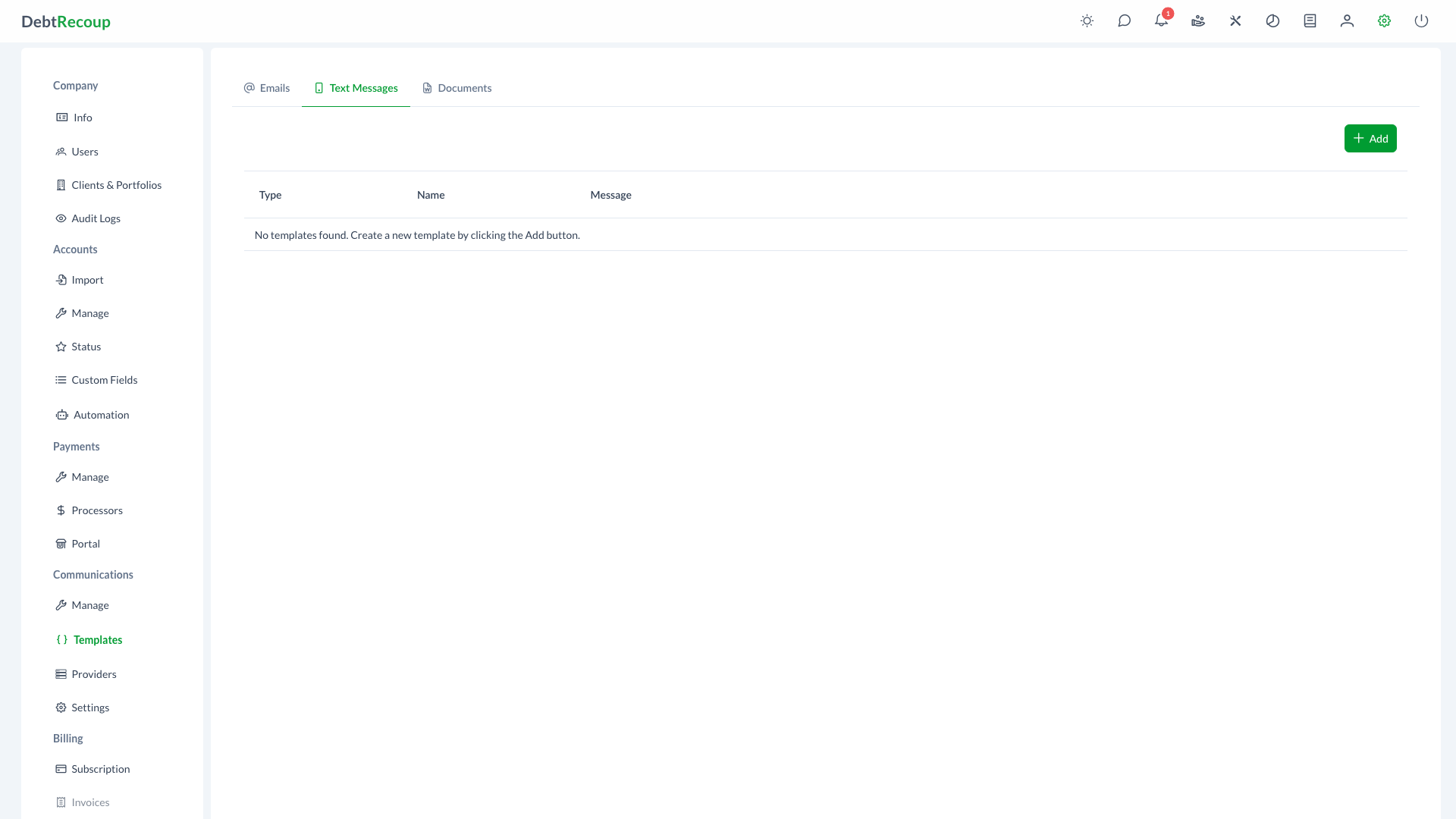
Text templates define reusable message content for SMS and MMS communications. They are managed from the Messages tab on Administration > Communications > Templates.
Key Benefits
- Consistent Messaging: Standardize SMS and MMS communications across your organization with pre-approved templates
- Compliance Control: Maintain regulatory compliance by managing approved message content in one location
- Efficiency: Reduce time spent composing individual messages by using ready-made templates
- Quick Updates: Modify template content once and have changes apply to all future communications
- MMS Support: Attach an image when the template type is MMS
Accessing Text Templates
- Open Administration
- In the Communications section, select Templates
- Select the Messages tab
Understanding Your Data
| Column | Description |
|---|---|
| Type | The message template type, either SMS or MMS |
| Name | A descriptive identifier for the template used when selecting it in workflows |
| Message | The actual text content that will be sent to recipients |
Using This Feature
Creating a New Template
- Click the Add button in the toolbar to open the template creation dialog
- Choose SMS or MMS in the Type field
- Enter a descriptive Name for your template
- For MMS templates, use Pick an Image to attach the image
- Compose your Message content in the editor
- Insert template variables by typing
{or by selecting from the variable list and clicking the plus button - Click Save to add the template to your library
Inserting Template Variables
The template editor supports variable insertion for personalization:
- Type
{in the message editor to trigger the variable autocomplete - Or browse the categorized variable list on the right side of the dialog
- Click a variable to insert it at your cursor position
Previewing Templates
Before saving, you can preview how your template will look with real account data:
- Click the Preview button in the dialog footer
- Select an account to use for the preview
- Review the SMS or MMS preview with actual account data substituted
Editing Templates
- Locate the template you want to modify in the list
- Click the pencil icon in the Actions column
- Update the template name or message content as needed
- Click Save to apply your changes
Deleting Templates
- Find the template you want to remove
- Click the trash icon in the Actions column
- Confirm the deletion when prompted
WARNING
Deleting a template may affect workflows that reference it. Review your automation rules before removing templates.
Template Best Practices
- Keep messages concise: SMS and MMS messages should be brief and clear
- Use clear naming conventions: Name templates descriptively (e.g., "Payment Reminder - First Notice") for easy identification
- Include required disclosures: Ensure templates contain any legally required identification or opt-out information
- Test before deploying: Send test messages to verify formatting and content before using templates in production workflows
- Review regularly: Periodically audit your template library to remove outdated content and update messaging
Related Topics
- Email Templates - Manage email communication templates
- Document Templates - Configure letter and document templates
- Notification Templates - Manage automation notification templates
- Automation - Set up automated communication workflows