Email Providers
Email providers control how DebtRecoup sends outgoing emails to debtors. Configure an SMTP server to send emails from your company's email address and domain. Some tenants also support the Causa Email System provider type.
Accessing Email Providers
- Navigate to Administration in the main menu
- Go to Communications → Providers
- Open the Emails tab
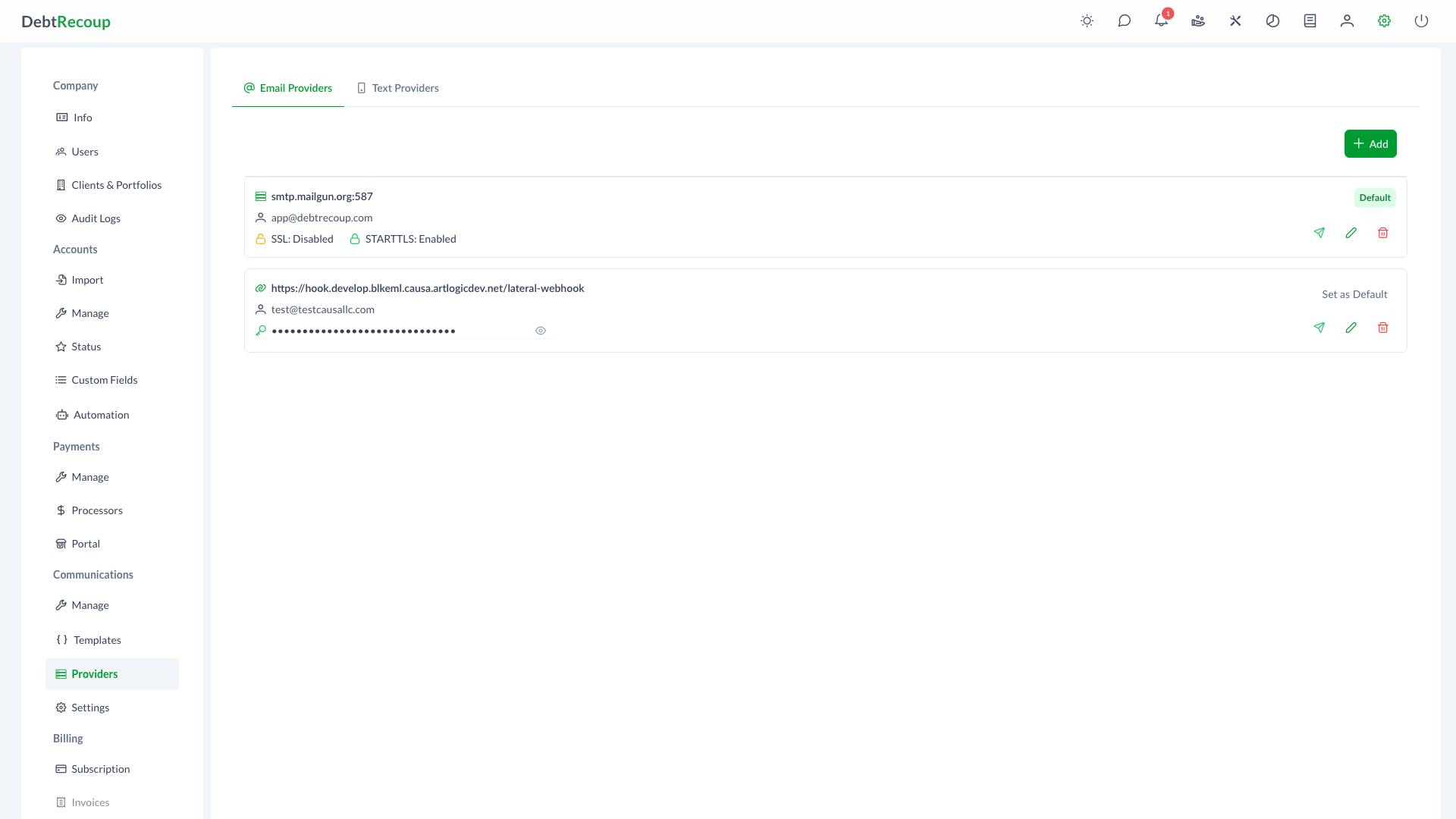
Email Provider List
The Emails tab displays all configured email providers with:
- Provider details - SMTP host and port, or endpoint details for non-SMTP providers
- Status indicators - SSL/TLS enabled status for SMTP providers
- Default badge - Shows which server is currently the default
- Action buttons - Test, edit, and delete options
Adding an Email Provider
- Click the Add button
- Choose the provider type when the Type field is shown
- Fill in the provider details
- Test the connection
- Click Add to save
SMTP Configuration Fields
| Field | Description | Example |
|---|---|---|
| From Email Address | The sender email address for outgoing emails | [email protected] |
| Host | SMTP server hostname | smtp.gmail.com, smtp.office365.com |
| Port | SMTP port number | 25, 465, or 587 |
| Username | SMTP authentication username | [email protected] |
| Password | SMTP authentication password | (hidden) |
| Enable SSL | Use SSL encryption | Toggle on/off |
| Enable StartTLS | Use StartTLS encryption | Toggle on/off |
Causa Email System Fields
When the Causa Email System provider type is available, the dialog uses these fields instead of SMTP host and port settings:
| Field | Description |
|---|---|
| From Email Address | The sender email address for outgoing emails |
| Endpoint | The email-system endpoint URL |
| Secret | The shared secret used to authenticate with the endpoint |
Common Port Settings
| Port | Protocol | Use Case |
|---|---|---|
| 25 | SMTP | Unencrypted (not recommended) |
| 465 | SMTPS | SSL encryption |
| 587 | SMTP + StartTLS | TLS encryption (recommended) |
Security Settings
- Enable SSL - Uses SSL/TLS encryption from the start of the connection (typically port 465)
- Enable StartTLS - Upgrades a plain connection to encrypted (typically port 587)
Choose One
Most servers require either SSL or StartTLS, not both. Check your email provider's documentation for the correct settings.
Testing Email Providers
Before using an email provider in production, test the connection:
- Click the Test button (send icon) on an existing server, or
- Click Test in the Add/Edit dialog before saving
A test email will be sent to your user's email address. If successful, you'll see a success message. If it fails, an error message will describe the issue.
Setting the Default Provider
One email provider can be designated as the default. Outgoing emails use the default provider unless a workflow or automation action selects another provider.
To Set a Default
- Find the provider you want to make default
- Click Set as Default
- Confirm the change
Existing Emails
When you change the default server, all future emails AND existing scheduled emails will use the new default server.
The default provider displays a green Default badge.
Editing an Email Provider
- Click the Edit button (pencil icon) on the provider
- Update the fields as needed
- Optionally test the connection
- Click Save
Password Updates
The password field appears empty when editing. Only enter a new password if you want to change it.
Deleting an Email Provider
- Click the Delete button (trash icon) on the provider
- Confirm the deletion
Cannot Delete Default
You cannot delete the default email provider. Set a different provider as default first, or add a new provider and make it the default.
Common Email Provider Settings
Gmail / Google Workspace
| Setting | Value |
|---|---|
| Host | smtp.gmail.com |
| Port | 587 |
| SSL | Off |
| StartTLS | On |
| Username | Your Gmail address |
| Password | App-specific password |
Gmail App Passwords
Gmail requires an "App Password" rather than your regular password. Enable 2-factor authentication and generate an app password in your Google Account settings.
Microsoft 365 / Outlook
| Setting | Value |
|---|---|
| Host | smtp.office365.com |
| Port | 587 |
| SSL | Off |
| StartTLS | On |
| Username | Your Microsoft email |
| Password | Your password or app password |
Amazon SES
| Setting | Value |
|---|---|
| Host | email-smtp.{region}.amazonaws.com |
| Port | 587 |
| SSL | Off |
| StartTLS | On |
| Username | SES SMTP username |
| Password | SES SMTP password |
Troubleshooting
Connection Failed
- Verify the host and port are correct
- Check that your firewall allows outbound connections on the SMTP port
- Ensure SSL/StartTLS settings match your provider's requirements
Authentication Failed
- Double-check username and password
- For Gmail/Microsoft, ensure you're using an app-specific password
- Verify the account is not locked or suspended
Emails Not Delivered
- Check spam/junk folders on the recipient side
- Verify your sending domain has proper SPF/DKIM/DMARC records
- Review any bounce messages in the system logs
Test Email Not Received
- Check your spam folder
- Verify your user profile has a valid email address
- Try sending to a different email provider
Best Practices
Use a Dedicated Sending Address
Use a dedicated email address like [email protected] rather than a personal mailbox.
Enable Encryption
Always use SSL or StartTLS for secure email transmission. Avoid port 25 without encryption.
Test Before Production
Always test new email provider configurations before using them for debtor communications.
Monitor Deliverability
Regularly check that emails are being delivered successfully. Set up SPF, DKIM, and DMARC records for your domain.
Related Topics
- Email Templates - Create email templates
- Communication Providers - Configure email, message, and notification providers
- Email Communication - Send emails to debtors
- Automation - Trigger automatic email sending