Email Templates
Overview
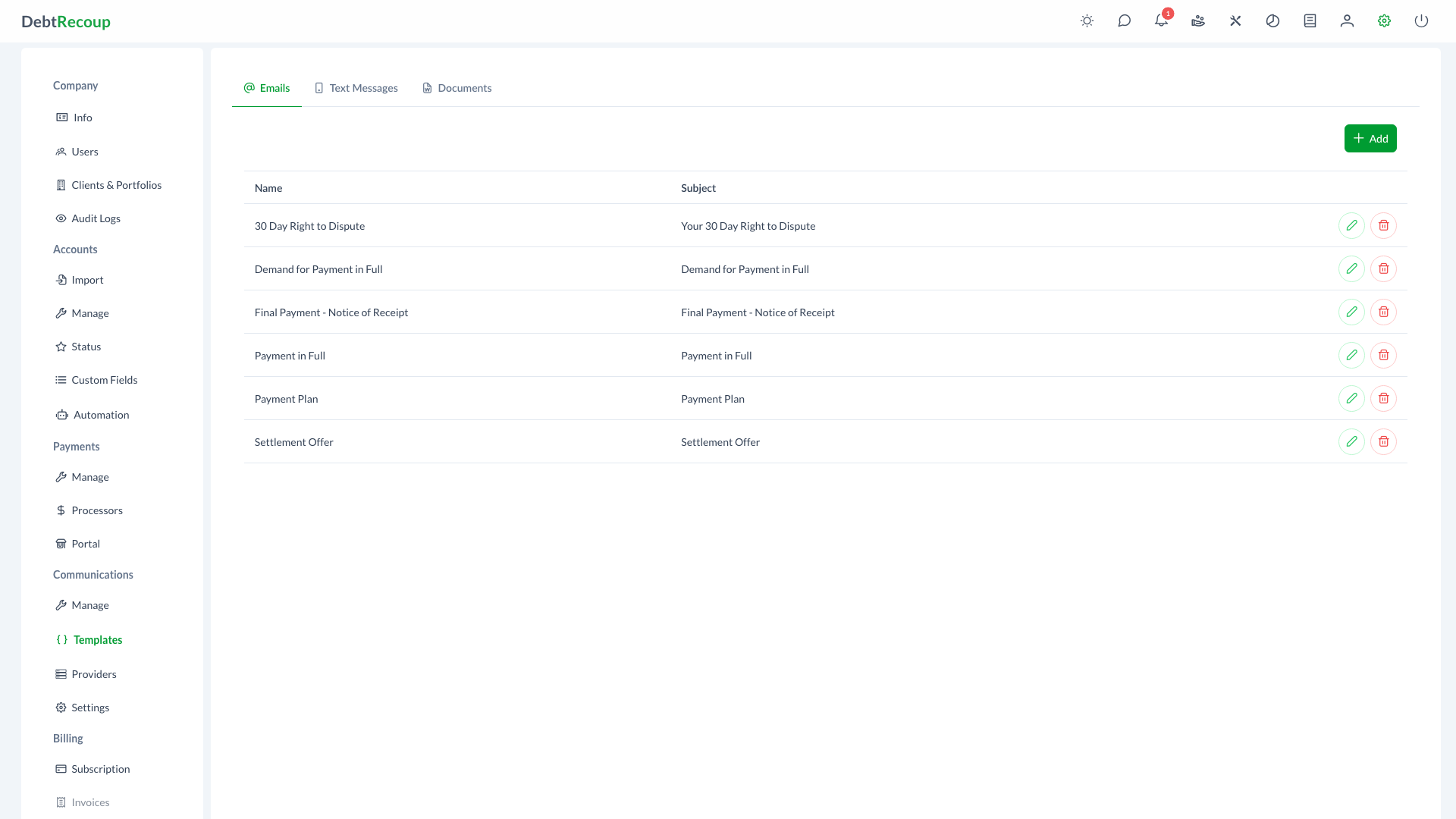
Email templates define the subject and body content used when DebtRecoup sends account emails. They are managed from the Emails tab on Administration > Communications > Templates.
Key Benefits
- Consistent Branding: Maintain professional, branded email communications across your organization with pre-approved templates
- Rich Formatting: Create visually appealing emails using the built-in rich text editor with formatting options
- Compliance Control: Manage approved email content in one location to maintain regulatory compliance
- Dynamic Personalization: Use template variables to automatically insert account-specific information
- Preview Capability: Test templates with real account data before deploying to production
- Efficiency: Reduce time spent composing individual emails by using ready-made templates
Accessing Email Templates
- Open Administration
- In the Communications section, select Templates
- Select the Emails tab
Understanding Your Data
| Column | Description |
|---|---|
| Name | A descriptive identifier for the template used when selecting it in workflows and manual actions |
| Subject | The email subject line that recipients will see in their inbox |
Using This Feature
Creating a New Template
- Click the Add button in the toolbar to open the template creation dialog
- Enter a descriptive Name for your template that clearly identifies its purpose
- Enter the Subject line for your email
- Compose your email content in the Body editor using the rich text formatting toolbar
- Insert template variables as needed by selecting a variable from the variable list and clicking the plus button
- Click Save to add the template to your library
Using the Rich Text Editor
The email body editor provides formatting options to create professional-looking emails:
- Text Styles: Normal text, Heading, and Subheading options
- Formatting: Bold, italic, and underline
- Colors: Text color and background highlight options
- Lists: Ordered (numbered) and bulleted lists
- Media: Insert links and images
- Clean: Remove all formatting from selected text
Inserting Template Variables
Template variables allow you to personalize emails with account-specific data:
- Position your cursor in the Subject field or Body editor where you want to insert the variable
- Browse the categorized variable list on the right side of the dialog
- Use the search filter to quickly find specific variables
- Select a variable to display it in the variable input field
- Click the plus button (+) to insert the variable at your cursor position
Variables can be inserted into both the subject line and email body.
Previewing Templates
Before saving, use Preview to render the template with real account data:
- Click the Preview button in the dialog footer
- If no account is selected, you will be prompted to select an account
- Once an account is selected, the preview will display your template with actual account data
- Click the file number to change the preview account
Editing Templates
- Locate the template you want to modify in the list
- Click the pencil icon in the Actions column
- Update the template name, subject, or body content as needed
- Click Save to apply your changes
Deleting Templates
- Find the template you want to remove
- Click the trash icon in the Actions column
- Confirm the deletion when prompted
WARNING
Deleting a template may affect workflows and automation rules that reference it. Review your automation configuration before removing templates.
Template Variables
Use template variables to automatically insert account, debtor, and payment information into your emails. Variables are replaced with actual data when the email is sent.
See the Template Variables reference for the complete list of available variables.
Template Best Practices
- Write clear subject lines: Create subject lines that are informative and encourage recipients to open the email
- Use consistent branding: Maintain professional formatting and tone across all templates
- Include required disclosures: Ensure templates contain any legally required identification, mini-Miranda language, or opt-out information
- Personalize appropriately: Use variables to make emails feel personal while maintaining professionalism
- Test before deploying: Use the preview feature to verify formatting and variable substitution with real account data
- Keep content scannable: Use headings, bullet points, and short paragraphs for better readability
- Include clear calls-to-action: Make it obvious what action you want the recipient to take
- Mobile-friendly design: Keep layouts simple as many recipients read emails on mobile devices
- Review regularly: Periodically audit your template library to remove outdated content and update messaging
Template Categories
Templates are typically organized by purpose:
Initial Contact
- First notice
- Validation letter
- Introduction email
- Welcome message
Payment Communications
- Payment due reminders
- Past due notices
- Payment received confirmations
- Payment plan setup confirmations
Special Situations
- Returned payment notifications
- Broken promise follow-ups
- Account review notices
- Dispute responses
Compliance
- Validation notices
- Cease communication acknowledgments
- Attorney representation notices
Compliance Elements
Important
All templates must include required compliance language based on regulations and client requirements.
Mini-Miranda Language
Templates should include the required Mini-Miranda disclosure:
This is an attempt to collect a debt and any
information obtained will be used for that purpose.Additional Disclosures
- State-specific language as required
- License numbers where applicable
- Client-specific required disclosures
Troubleshooting
Common Issues
Variables Not Replacing
- Verify the variable name is spelled correctly
- Confirm the data exists for the account
- Test with a sample account using the preview feature
- Review variable syntax (ensure proper formatting)
Formatting Problems
- Test the email in multiple email clients
- Simplify complex HTML if compatibility issues arise
- Use the plain text fallback for maximum compatibility
Delivery Issues
- Review content for spam trigger words
- Keep subject lines professional and clear
- Test with a small group before mass deployment
Related Topics
- Template Variables - Complete list of available merge fields
- Text Templates - Manage SMS and MMS message templates
- Document Templates - Configure letter and document templates
- Notification Templates - Manage automation notification templates
- Automation - Set up automated communication workflows