E-Signatures
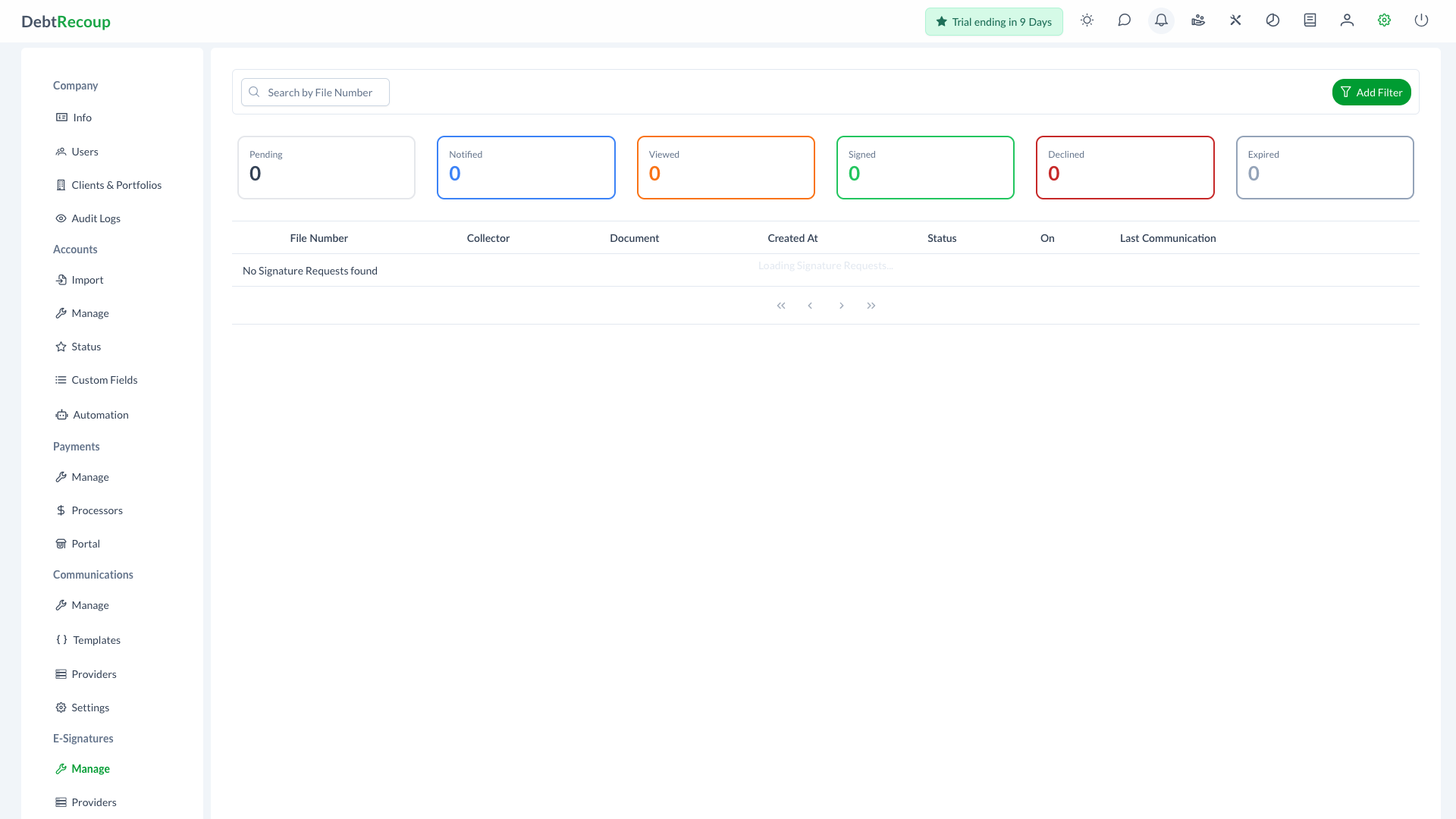
E-Signatures let administrators manage signature requests and configure signature providers.
Accessing E-Signatures
- Open Administration
- In the E-Signatures section, select Manage for signature requests or Providers for provider setup.
Manage Signature Requests
The Manage page shows signature request totals and a request table.
Status Cards
The status cards filter the request list:
| Card | Included Status |
|---|---|
| Pending | CREATED, VIEWED, and NOTIFIED requests |
| Notified | NOTIFIED requests |
| Viewed | VIEWED requests |
| Signed | SIGNED requests |
| Declined | DECLINED requests |
| Expired | EXPIRED requests |
Request Table
The request table includes:
- File Number
- Collector
- Document
- Created At
- Status
- On
- Last Communication
Use Search by File Number or Add Filter to narrow the list. The filter dialog supports Status and Created At filters. Use the action buttons to open the E-Signature dialog, view documents, or download documents. Signed requests provide signed, audit, and original document options; original viewing is available when the original file is a PDF. Unsigned requests provide the original document.
E-Signature Dialog
The E-Signature dialog shows request details and actions.
For new requests, select an account when needed, choose a provider when multiple providers exist, and set an optional expiration.
For existing requests, the dialog shows:
- Status and timestamp
- Declined reason when present
- URL with copy action
- Email and Message notification actions while the request can still be notified
- Expiration
- History
Requests can be canceled while they are still in an active request state such as CREATED, VIEWED, SENT, or NOTIFIED. Canceled, declined, and expired requests can be requested again.
Providers
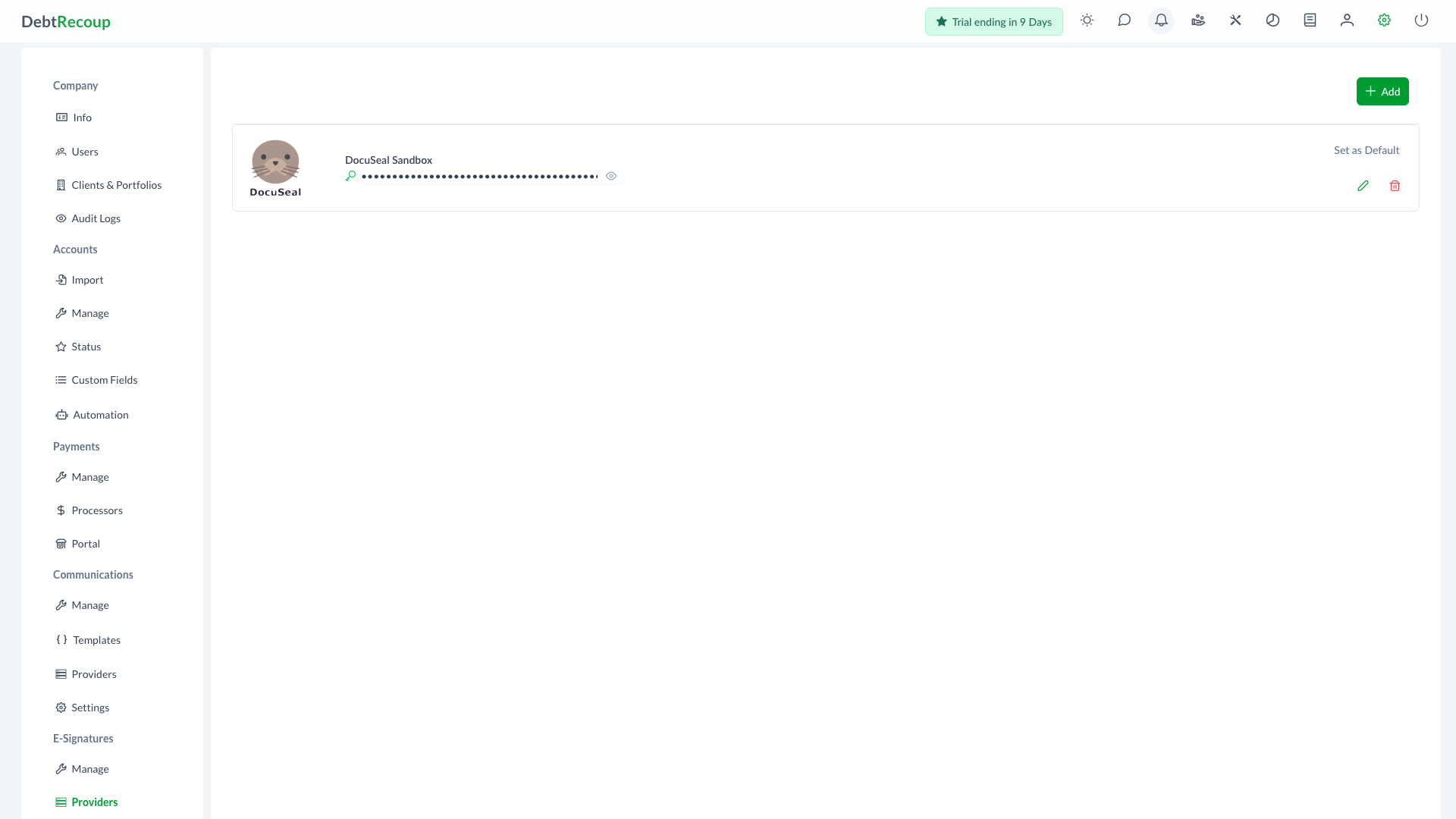
The Providers page configures signature providers. The current provider type is DocuSeal.
Provider setup stores:
| Field | Description |
|---|---|
| Name | Display name for the provider |
| API Key | DocuSeal API key |
One provider can be set as the default. Provider API keys are masked by default in the provider list and provider dialog.
Use Add to create a provider, Set as Default to choose the default provider, and the row actions to edit or delete a provider.
Related Topics
- Documents - Account documents
- Communication Management - Email and message delivery