Triggers
Triggers are the core of DebtRecoup's automation system. A trigger monitors for specific events and automatically performs actions when conditions are met.
Understanding Triggers
Each trigger consists of three parts:
| Component | Description | Required |
|---|---|---|
| Event | What starts the trigger | Yes |
| Conditions | Which accounts the trigger applies to | No (defaults to all) |
| Actions | What happens when the trigger fires | Yes (at least one) |
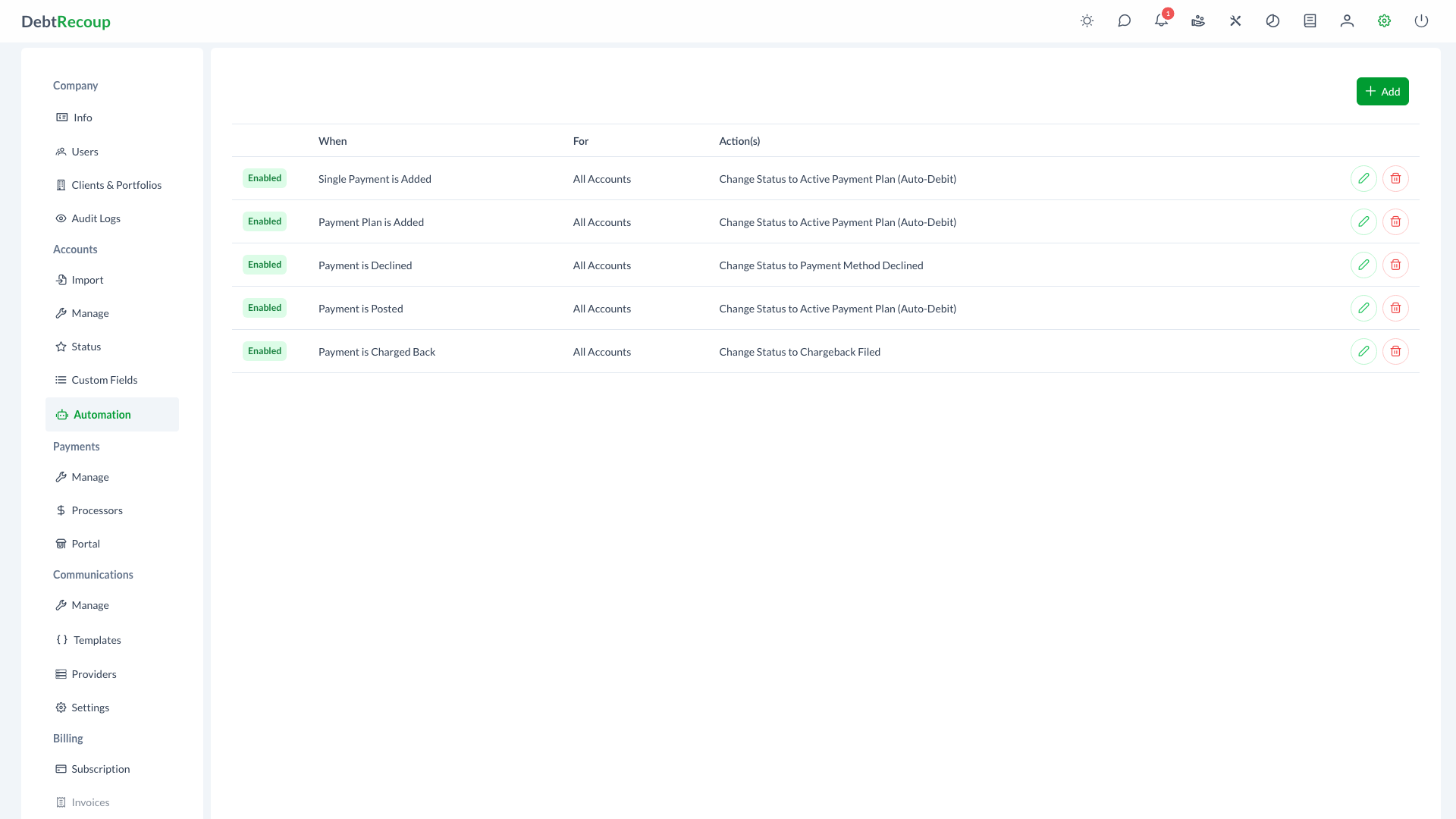
Trigger Events
Events define when a trigger should evaluate. Select one event per trigger.
In the trigger dialog this field is labeled When Account.
Account Events
| Event | Description |
|---|---|
| is Created | Fires when a new account is added to the system |
| is Updated | Fires when account data is modified |
| Balance is Changed | Fires when the current balance changes |
| is in a Status for | Fires when an account has been in a status for the entered number of days |
| Last Work Date is | Fires when the last worked date is the entered number of days ago |
| Status is Changed | Fires when the account status changes |
| Alert is Set | Fires when an account alert is set |
Time-Based Events
| Event | Description |
|---|---|
| Payment is due in | Fires the entered number of days before a queued payment is due |
Payment Events
| Event | Description |
|---|---|
| Single Payment is Added | Fires when a single payment is added |
| Payment Plan is Added | Fires when a payment plan is added |
| Payment is Posted | Fires when a payment is successfully processed |
| Payment is Declined | Fires when a payment attempt fails |
| Payment is Voided | Fires when a payment is voided |
| Payment is Charged Back | Fires when a payment is reversed |
Communication Events
| Event | Description |
|---|---|
| Last Call Disposition is Set | Fires when a call disposition is set on the latest call |
Trigger Conditions
Conditions filter which accounts the trigger applies to. Without conditions, the trigger applies to all accounts that match the event.
Available Conditions
| Condition | Description | Value Type |
|---|---|---|
| Client is | Filter by specific client | Select |
| Portfolio is | Filter by specific portfolio | Select |
| Status is / Status is now | Filter by status. The label changes to Status is now for the Status is Changed event. | Select |
| Balance is / Balance is now | Filter by balance amount. The label changes to Balance is now for the Balance is Changed event. | Money (with operator) |
| Debtor is Bankrupt | Filter for bankrupt debtors | Boolean |
| Debtor is Deceased | Filter for deceased debtors | Boolean |
| Latest Call Disposition is / Latest Call Disposition is Set to | Filter by last call outcome. Dispositions are grouped by direction. | Select |
| Configured custom fields | Filter by a configured custom field label | Text with operator |
Balance Operators
When using the Balance is condition, you can select an operator:
- Equal to - Balance must exactly match
- Greater or Equal to - Balance must be at or above the amount
- Less or Equal to - Balance must be at or below the amount
Combining Conditions
- Use And to add additional conditions (all must be true)
- Use Or to add alternative values for the same condition type
The first condition row starts with Where. Additional different condition types are joined with And. Extra values for the same condition type are joined with Or.
Example: Trigger for accounts where:
- Status is "Active" And
- Client is "ABC Corp" Or Client is "XYZ Inc"
Trigger Actions
Actions define what happens when a trigger fires. You must have at least one action, and you can chain multiple actions together.
Available Actions
| Action | Description | Value | Unique |
|---|---|---|---|
| Add a Note | Creates a note on the account | Text | No |
| Change Status to | Updates the account status | Select status | Yes |
| Assign To | Assigns the account to a user | Select user | Yes |
| Send Email | Sends an email using a provider and template | Select provider and template | No |
| Send SMS | Sends a text message using a provider and template | Select provider and template | No |
| Send MMS | Sends a multimedia message using a provider and template | Select provider and template | No |
| Send Notification | Sends a DebtRecoup or notification-provider message using a template | Select provider and template | No |
| Set Balance to Zero | Sets the account balance to zero | None | Yes |
| Delete Halted Payments | Removes halted payments | None | Yes |
| Void Remaining Payments | Voids remaining future payments with a note | Text | No |
Unique Actions
Actions marked as "Unique" can only be used once per trigger. For example, you cannot have two "Change Status to" actions in the same trigger.
Creating a Trigger
- Open Administration
- Select Automation
- Click Add
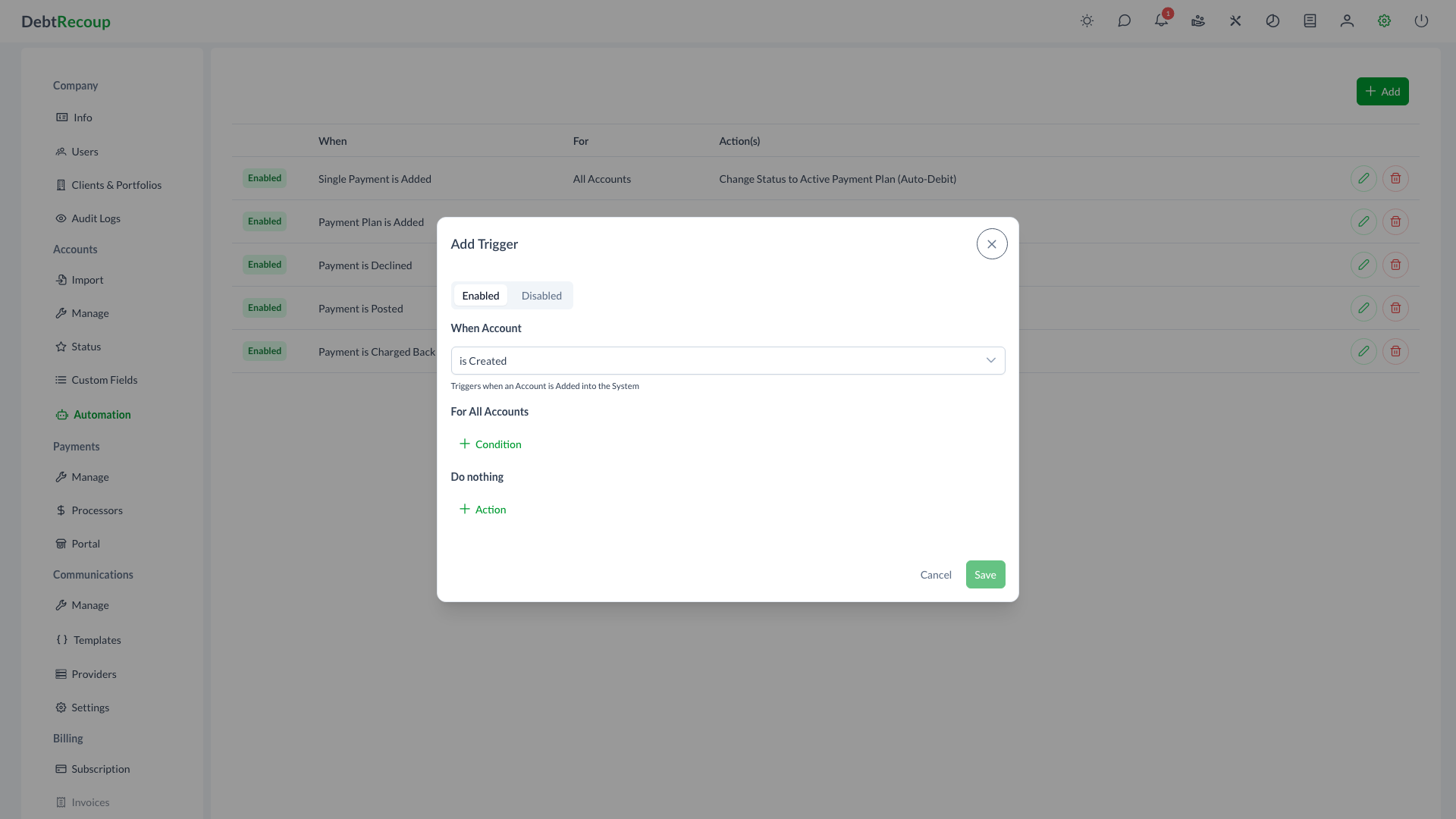
Choose whether the trigger is Enabled or Disabled
Select an Event
- Choose what should trigger the action
- For time-based events, enter the number of days
Add Conditions (optional)
- Click Condition to add a filter
- Select the condition type and value
- Add more conditions with And or Or
Add Actions
- Click Action
- Select the action type
- Configure the action value (if required)
- Add additional actions as needed
Click Save
The Save button remains disabled until at least one action is selected.
Editing a Trigger
WARNING
Editing a trigger can cause it to re-trigger on accounts that have recently been processed. A warning message will appear when editing.
- Locate the trigger in the list
- Click the Edit (pencil) button
- Make your changes
- Click Save
Note: The event type cannot be changed when editing. To change the event, create a new trigger.
Deleting a Trigger
- Locate the trigger in the list
- Click the Delete (trash) button
- Confirm the deletion
Trigger Execution
Immediate Events
Events like "Account is Created" or "Payment is Posted" trigger immediately when the action occurs.
Scheduled Events
Time-based events like "Account is in Status for X Days" are evaluated periodically by the system.
Examples
Example 1: Auto-Assign New Accounts
Goal: Assign all new accounts from Client ABC to collector John Smith
- Event: Account is Created
- Condition: Client is "ABC Corp"
- Action: Assign To "John Smith"
Example 2: Payment Reminder
Goal: Send reminder email 3 days before payment is due
- Event: Payment is due in 3 Days
- Action: Send Email "Payment Reminder Template"
Example 3: Zero Balance Status Change
Goal: Change status to "Paid in Full" when balance reaches zero
- Event: Balance is Changed
- Condition: Balance is Equal to $0.00
- Action: Change Status to "Paid in Full"
Example 4: Deceased Debtor Handling
Goal: Add a note and change status when debtor is marked deceased
- Event: Account is Updated
- Condition: Debtor is Deceased
- Actions:
- Add a Note "Account flagged - debtor deceased"
- Change Status to "Deceased"
Troubleshooting
Trigger Not Firing
- Verify the event matches the action you're taking
- Check that all conditions are being met
- Ensure the trigger is not disabled
- For time-based triggers, allow time for the scheduler to run
Trigger Firing on Wrong Accounts
- Review your conditions - missing conditions means all accounts match
- Check for typos in condition values
- Verify the event is specific enough
Actions Not Completing
- For email actions, verify the template exists and is valid
- For status changes, ensure the target status exists
- Check for permission issues with the assigned user
Related Topics
- Automation Overview - Introduction to automation
- Notifications - Receive alerts when triggers fire
- Email Templates - Create templates for automated emails
- Call Dispositions - Understanding call dispositions for triggers
- Status Configuration - Configure statuses for trigger actions