To Approve Communications
Communication Management
This page describes the To Approve tab in Communication Management. For an overview of all communication queues and general management features, see Communication Management Overview.
Overview
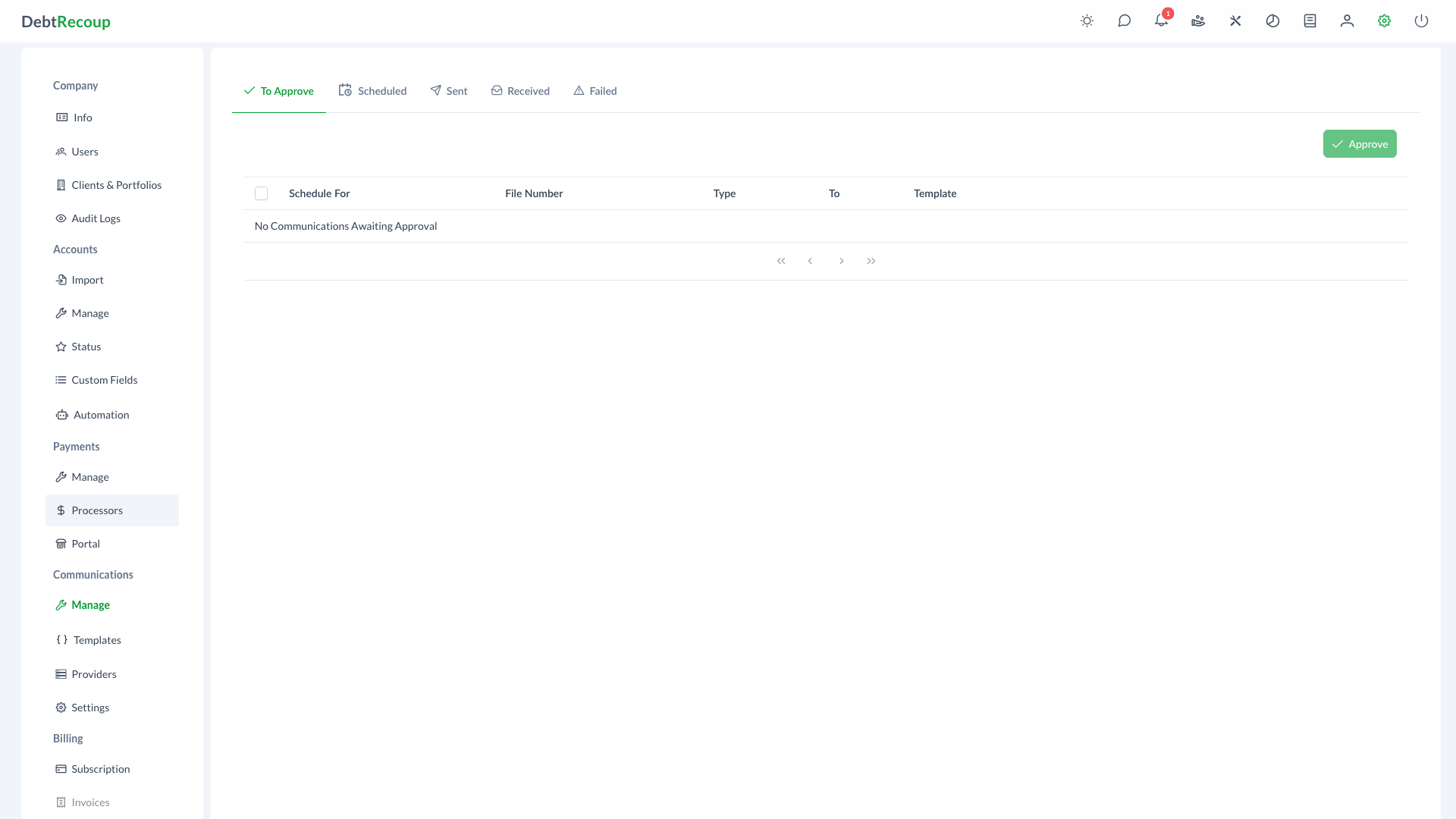
The To Approve tab displays outbound communications that require manual approval before being sent to debtors. Administrators can edit, preview, delete, and bulk approve email, SMS, and MMS messages. Rows with missing recipient information are highlighted.
Key Benefits
- Quality Control: Review all communications before they reach debtors, ensuring messaging accuracy and compliance
- Bulk Processing: Approve multiple communications simultaneously to streamline high-volume workflows
- Invalid Contact Detection: Visual indicators highlight messages with missing or invalid recipient information
- Flexible Management: Edit, preview, or delete communications directly from the approval queue
Understanding Your Data
| Field | Description | How to Use It |
|---|---|---|
| Schedule For | Date and time the communication is scheduled to send | Review timing to ensure messages go out at appropriate hours |
| File Number | The account identifier associated with the communication | Click to access the full account record if needed |
| Collector | The assigned collector on the account, when available | Identify who owns the account relationship |
| Type | Communication channel (EMAIL, SMS, or MMS) | Review the delivery channel |
| To | Recipient email address or phone number | Highlighting indicates missing contact information |
| Template | The message template used for this communication | Verify the correct template was selected for the communication purpose |
Using This Feature
Reviewing Pending Communications
- Open Administration
- In the Communications section, select Manage
- Select the To Approve tab
- Review the scheduled date, collector, recipient, and template for each entry
- Look for highlighted rows, which indicate missing recipient information
Approving Communications
To approve communications, use the bulk selection workflow:
- Use the checkboxes on the left side of each row to select the communications you want to approve
- Select all visible items using the header checkbox if needed
- Click the Approve button in the header area to approve all selected communications
- The approved communications move to the scheduled queue for delivery at the designated time
Single or Multiple
You can approve a single communication by selecting just one checkbox, or approve multiple at once by selecting several.
Handling Invalid Recipients
- Rows with missing recipient information appear highlighted
- The To field displays N/A when the contact is missing
- Click the Edit button to update the recipient information
- Alternatively, click Delete to remove the communication from the queue
- Do not approve communications with invalid recipients, as they will fail to deliver
Best Practices
- Review the approval queue daily to prevent communication delays
- Use bulk approval for routine communications after spot-checking a sample
- Investigate accounts with invalid contact information to update records at the source
- Preview communications with custom content before approving
- Delete outdated communications rather than letting them accumulate in the queue
- Coordinate with your team to establish approval responsibilities and prevent duplicate reviews
Related Topics
- Communication Management Overview - Dashboard and general communication management
- Scheduled Communications - View and manage scheduled communications
- Sent Communications - View sent communication records
- Failed Communications - Handle delivery errors
- Email Templates - Create and manage message templates