Payment Queue
Payment Management
This page describes queued payments in Payment Management. For an overview of the payment status KPI buttons and common actions, see Manage Payments.
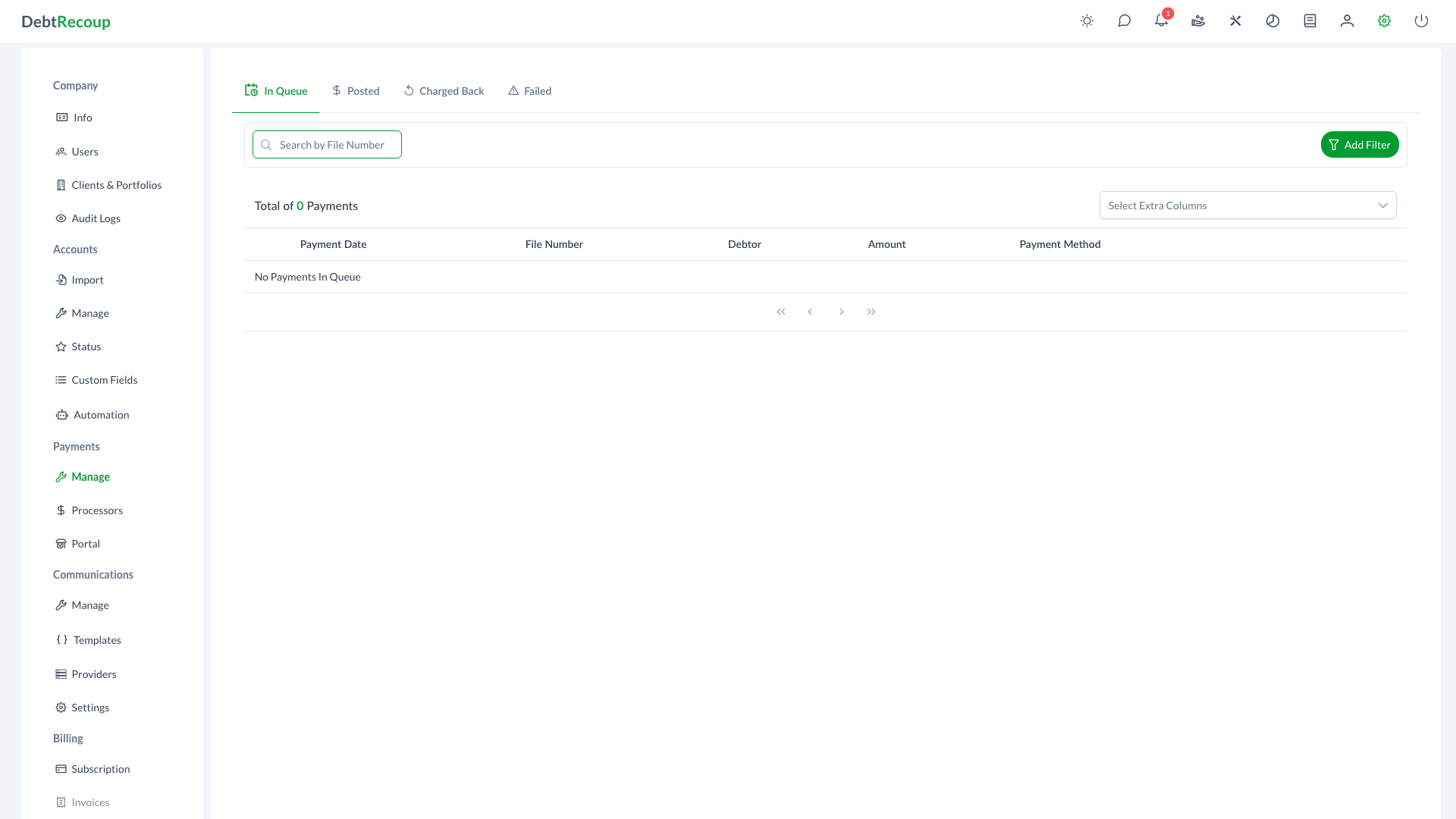
The Payment Queue displays all payments waiting to be posted or charged. This view allows you to review pending payments before they are processed, make edits as needed, and remove payments that should not be processed.
Overview
The Payment Queue provides a centralized view of all payments with a Queued status. These are payments that have been scheduled or entered but have not yet been posted to the account or charged to the payment method. This gives you an opportunity to review, verify, and manage payments before they are finalized.
Key Benefits
- Pre-Processing Review: Review all pending payments before they are posted to accounts
- Error Prevention: Catch and correct mistakes before payments are processed
- Flexible Management: Edit payment details or delete payments that should not be processed
- Efficient Filtering: Quickly find specific payments using date filters
- Customizable View: Show or hide optional columns based on your workflow needs
Understanding Your Data
Core Columns
The following columns are always displayed in the Payment Queue:
| Column | Description |
|---|---|
| Payment Date | The date the payment is scheduled to be processed |
| File Number | The account file number (clickable to open the account) |
| Collector | Collector assigned to the account |
| Debtor | The name of the debtor associated with the account |
| Amount | The payment amount to be processed |
| Payment Method | The payment method type (card type or method) with last 4 digits when available |
Optional Columns
You can add the following optional columns using the column selector in the table header:
| Column | Description |
|---|---|
| Client | The client associated with the account |
| Portfolio | The portfolio the account belongs to |
| Current Balance | The current balance on the account |
| Payor Name | The name of the person making the payment |
Using This Feature
Accessing the Payment Queue
- Open Management from the top navigation
- Select the Payments tab
- Select the Queued KPI button to view payments waiting to be processed
Viewing the Queue
The Payment Queue displays all payments with Queued status. Use Search by File Number or Add Filter to narrow the list. The total number of payments in the queue is displayed at the top of the table.
Pagination: The queue displays 100 payments per page with lazy loading for efficient performance with large datasets.
Adding Optional Columns:
- Click the "Select Extra Columns" dropdown in the table header
- Select the additional columns you want to display
- Selected columns appear as chips and are added to the table
Editing Payments
To edit a payment before it is processed:
- Locate the payment in the queue
- Click the pencil icon on the left side of the payment row
- Make the necessary changes in the Payment Dialog
- Click Save to update the payment
Common edits include correcting payment amounts, changing payment dates, or updating payment method information.
Deleting Payments
To remove a payment from the queue:
- Locate the payment you want to delete
- Click the trash icon on the right side of the payment row
- Confirm the deletion in the dialog that appears
Permanent Action
Deleting a payment removes it from the queue permanently. This action cannot be undone.
Filtering Payments
Use the filter toolbar above the KPI buttons to narrow the payments displayed. Select the Queued KPI button whenever you need to return to the payment queue.
Best Practices
- Daily Review: Check the payment queue at the start of each day to verify scheduled payments
- Verify Before Processing: Review payment details carefully before posting to prevent errors
- Use Optional Columns: Add the Client and Portfolio columns when processing payments for multiple clients
- Check Amounts: Verify payment amounts match expected values before processing
- Document Changes: When editing payments, ensure any changes are properly documented in account notes
Related Topics
- Manage Payments - Overview of payment status KPI buttons and common actions
- Posted Payments - View successfully processed payments
- Failed Payments - Handle payment processing errors
- Charged Back - Track reversed payments
- Payment Processors - Configure payment processing methods
- Payment Processing - Enter and process payments